

Configure the Custom Setting ("Allow Object Access")
Introduction
Site Guest Users associated with Communities cannot be given permission through standard Salesforce settings to update or delete existing records. We use a Custom Setting to allow you or your System Administrator to designate any objects that you wish to allow the Site Guest User to update (or delete). For example, you'll need to give the Site Guest User permission to update the Application object for Portal Registration to work.
Before You Begin: Prerequisites and Considerations
- Go through the Site Guest User Profile to grant both Object and Field Permissions before configuring Allow Object Access (, click the site's name, and click the button “Public Access Settings”).
- Before configuring Allow Object Access, use to give the Site Guest User Profile access to all of the records of all of the objects it will need to access.
- For your portal’s Site Guest User, you will need to configure Allow Object
Access to grant “Read” and “Edit” Object Permissions for these objects:
- Account
- Contact
- Lead
- Application
- Any site that creates Contacts will also need the above permissions.
- Do not configure Allow Object Access Field Permissions for any object if the profile already allows you to configure Field permissions for that object. If the profile does not offer Field Permissions for a given object, use Allow Object Access to configure Field Permissions; you can otherwise rely on the profile’s Field Permissions.
- Other objects may need “Edit” permissions if you intend to edit them on a site, for example, Recommendations.
Allow Object Access
You can access the Allow Object Access screen by clicking the gear icon in each Environment’s
row, shown here:
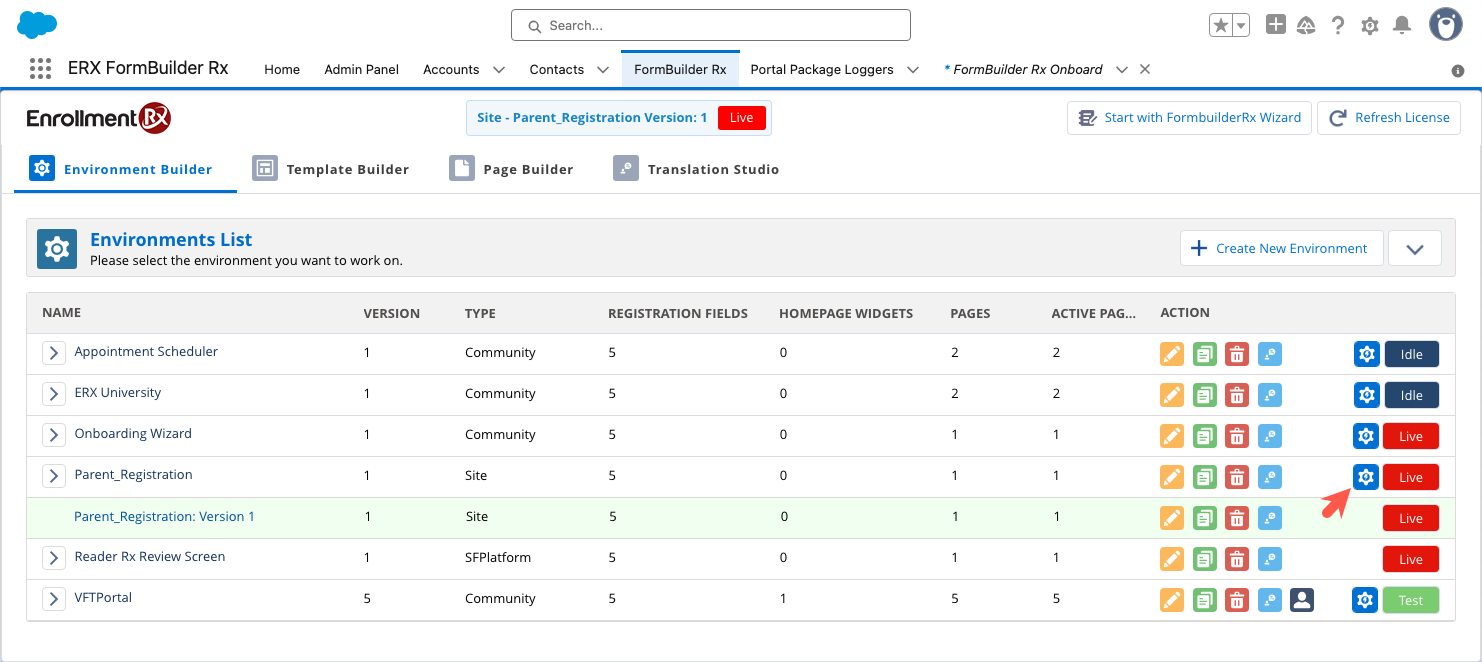
Clicking the gear icon will open a dialog.
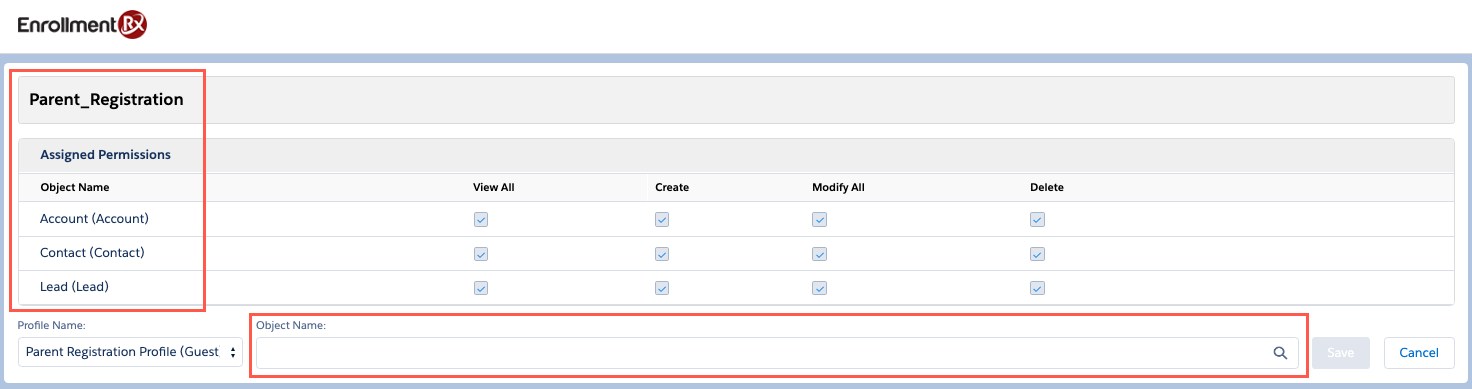
In the dialog window, choose the name of the profile you want to configure. The name
of the profile will appear in bold type in the upper left, above a list of the
objects already configured for that profile. To configure an object for access by
the profile, look up the object’s name in the search field at the bottom called
“Object Name”
A page of checkboxes for Object and Field Permissions will appear like this:
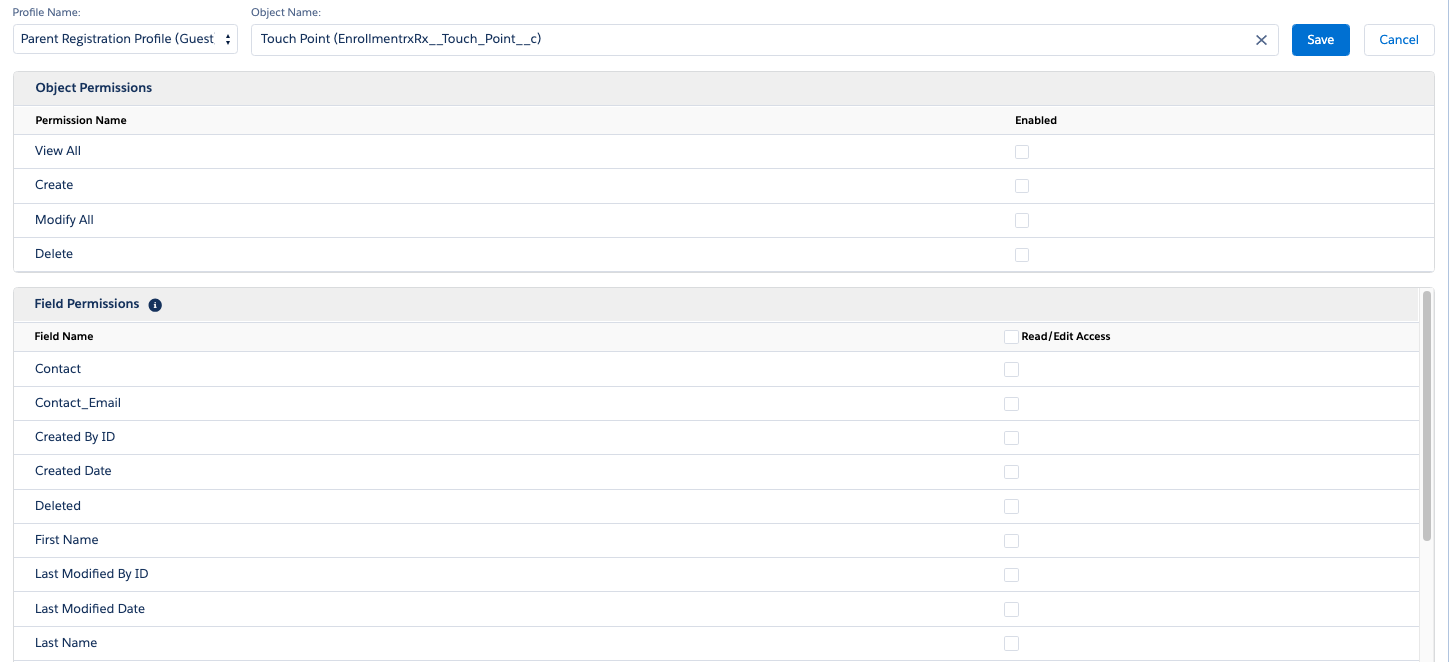
Make your selections and click Save.