

Configure Bulk Clone and Super Clone for Standard and Custom Objects
Overview
ERX Core v8.2 (2026 Release 1) introduces a significant enhancement to the cloning framework by making both Bulk Clone and Super Clone object-agnostic.
Previously, these features were tightly coupled to the configured Application object and required additional object configuration within ERX Core Administration. Administrators can now enable cloning for virtually any standard or custom Salesforce object with minimal configuration.
This enhancement simplifies administration, reduces setup time, and provides a consistent cloning experience across supported Salesforce objects.
Benefits
The object-agnostic cloning framework provides the following benefits:
- Enable cloning for virtually any standard or custom Salesforce object.
- Eliminate the dependency on Application Object Configuration for Super Clone.
- Reuse the same cloning framework across multiple Salesforce objects.
- Perform a lightweight, one-time configuration for each supported object.
- Clone parent records together with configurable child relationships.
- Reduce administrative effort while increasing implementation flexibility.
Bulk Clone
Bulk Clone Previous Behavior
Prior to ERX Core v8.2, Bulk Clone was available only for the configured Application object. Organizations could not reuse the Bulk Clone framework for other Salesforce objects.
Bulk Clone New Behavior
Bulk Clone now supports virtually any standard or custom Salesforce object.
To enable Bulk Clone for an object, complete a one-time configuration consisting of:
- Creating a Visualforce bridge page
- Configuring CoreRx Settings metadata
- Creating a Bulk Clone list button
- Adding the button to the object's list view
- Creating the required field sets
The following example configures Bulk Clone for a custom CustomApplication__c object.
Step 1. Create the Visualforce Bridge Page
Because managed packages cannot automatically create object-specific Visualforce pages for customer-created objects, create one Visualforce page for each object that will use Bulk Clone.
- Navigate to Setup > Visualforce Pages.
- Click New.
- Enter the following values:
| Property | Value |
|---|---|
| Label | CustomApp BulkClone |
| Name | CustomApp_BulkClone |
- Paste the following code into the page.
<apex:page
    standardController="CustomApplication__c"
    recordSetVar="lstRecs"
    extensions="EnrollmentrxRx.BulkCloneAppExtension">

    <EnrollmentrxRx:BulkSuperCloneCmp
        recIds="{!recIds}"
        sObjectName="{!sObjectName}" />

</apex:page>
- Save the page.
Step 2. Configure CoreRx Settings
A new metadata field, ERx Parent Object, identifies the parent Salesforce object that Bulk Clone supports.
Add the ERx Parent Object Field to the Page Layout
- Navigate to:
- Edit the page layout.
- Add the ERx Parent Object field.
- Save the layout.
Create a CoreRx Settings Record
- Navigate to:
- Click New.
- Complete the fields.
| Field | Value |
|---|---|
| Label | CustomApplication |
| CoreRx Settings Name | CustomApplication |
| ERx Parent Object | CustomApplication__c |
| ERx Cloneable Child Objects | Custom_Child__c, Custom_Grand_Child__c |
- Save the record.
Step 3. Create the Bulk Clone Button
- Navigate to:
- Click New Button or Link.
- Configure the button.
| Property | Value |
|---|---|
| Label | Bulk Clone |
| Name | Bulk_Clone |
| Display Type | List Button |
| Content Source | Visualforce Page |
| Content | CustomApp_BulkClone |
-
Save the button.
Step 4. Add the Button to the List View
- Navigate to:
- Edit the layout.
- Move Bulk Clone to the Selected Buttons section.
- Save the layout.
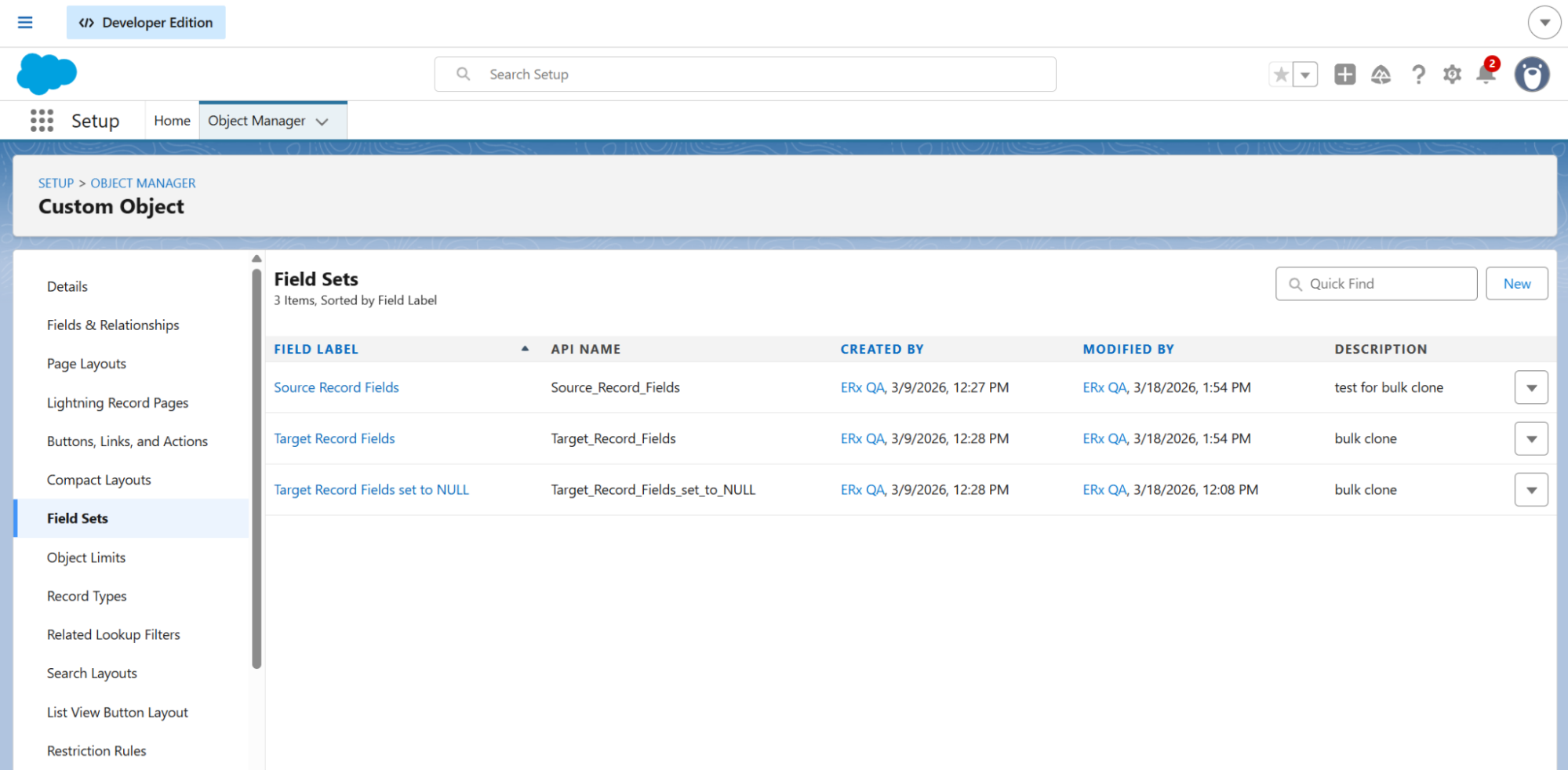
Step 5. Create the Required Field Sets
Use Bulk Clone
After configuration is complete:
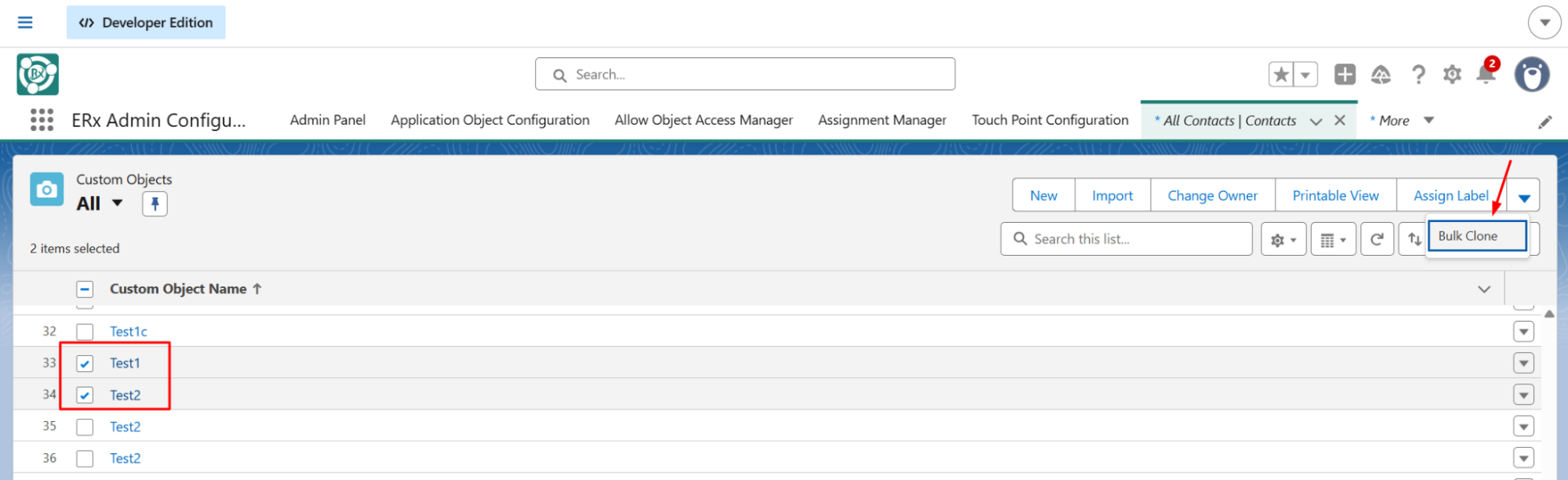
- Create multiple parent records.
- Create the related child records.
- Open the object's list view.
- Select one or more records.
- Click Bulk Clone.
The Bulk Clone page displays:
- Selected parent records
- Configured child relationships
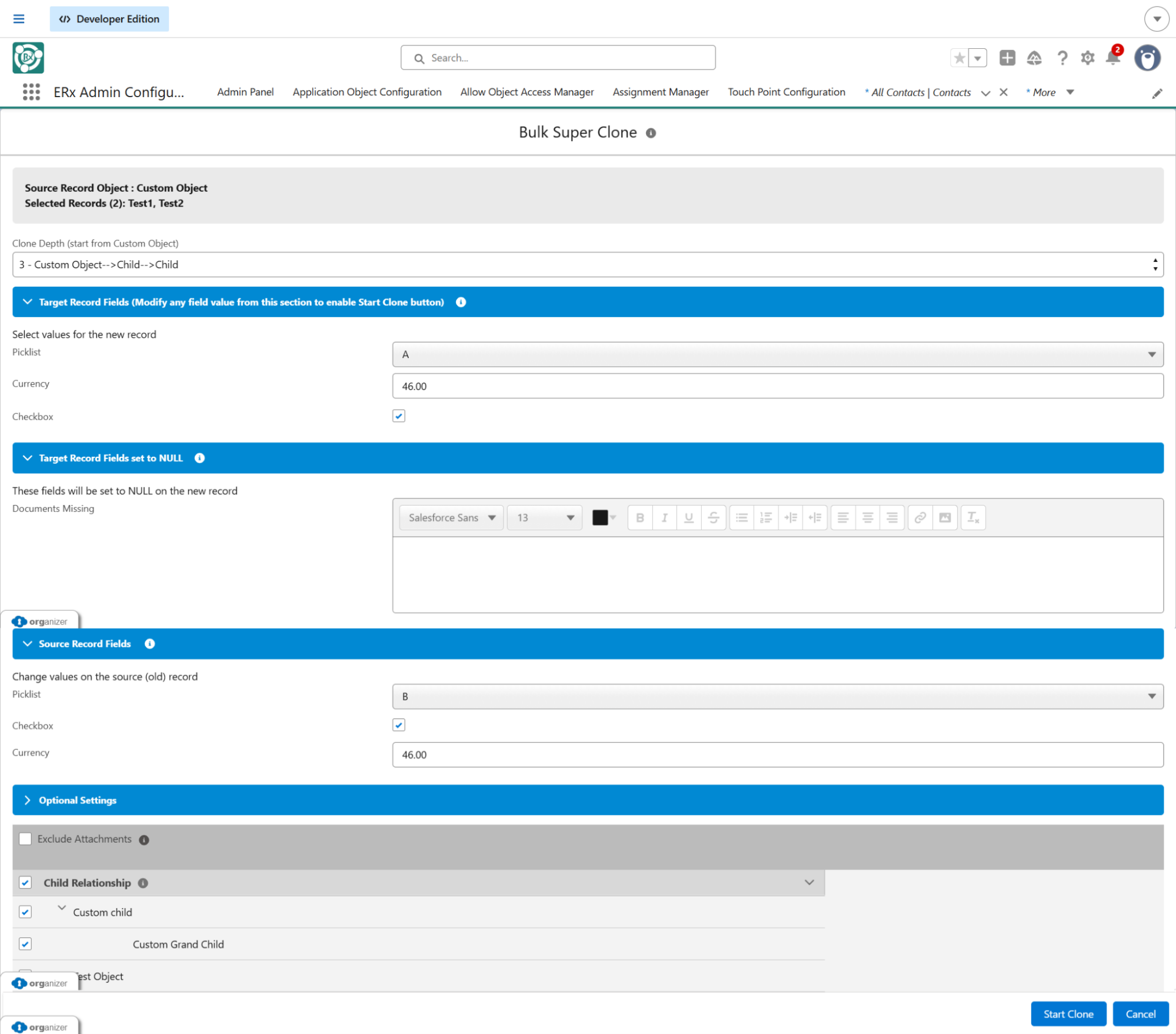
- Records to be cloned
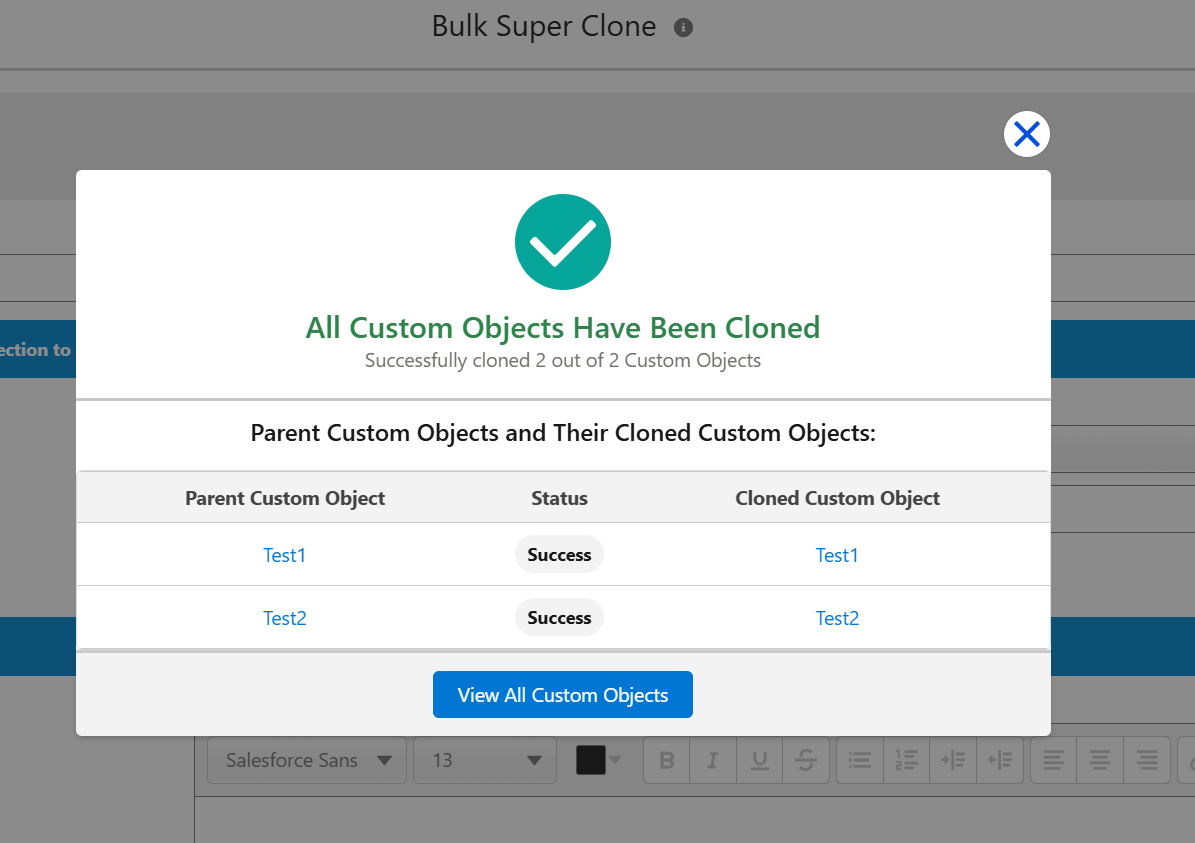
Bulk Clone automatically clones:
- Parent records
- Configured child records
- Configured grandchild records
No object-specific code changes are required.
Super Clone
Super Clone Previous Behavior
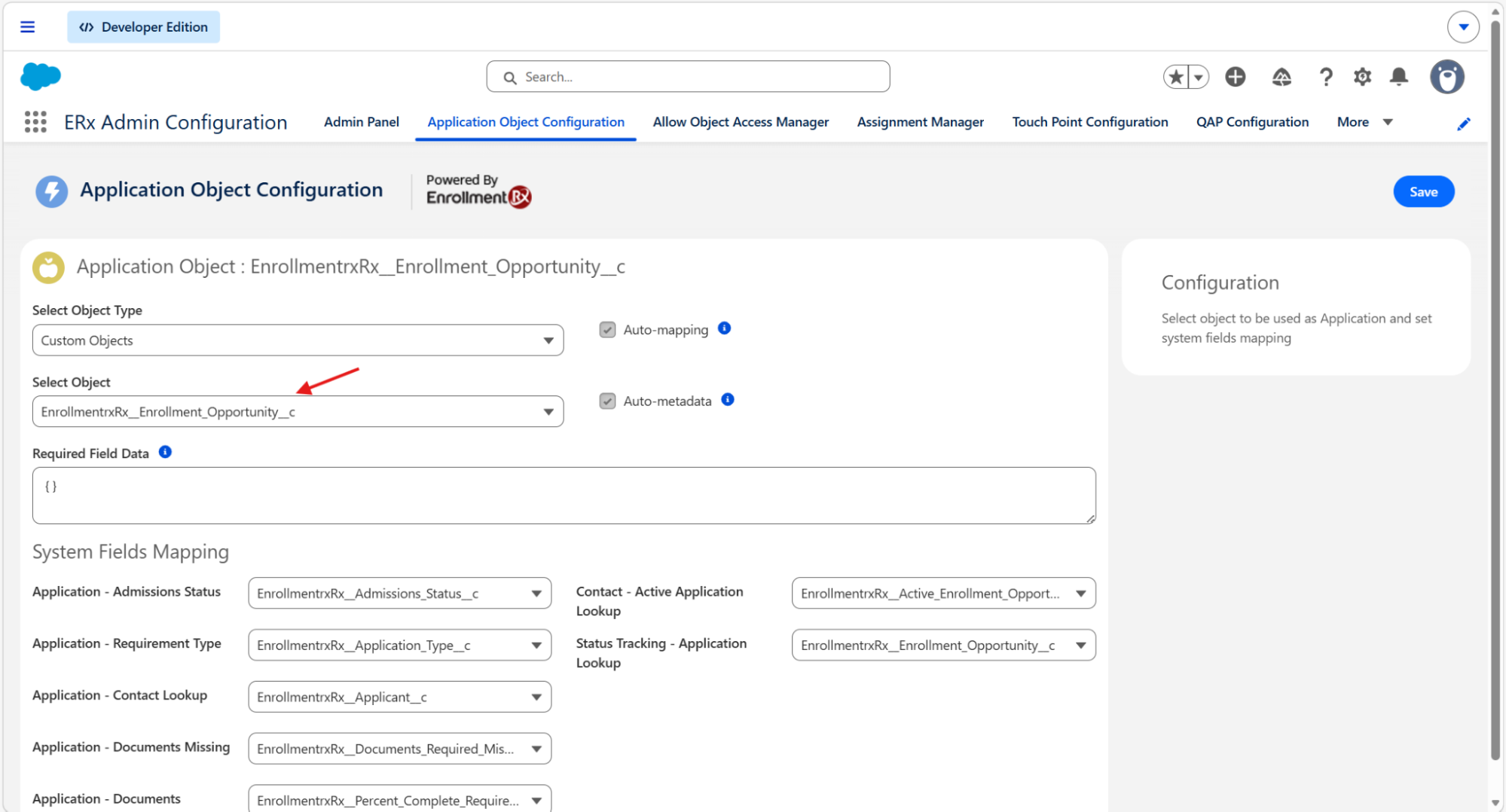
If an object was not configured:
- Field sets appeared empty.
- Super Clone could not render correctly.
- Administrators had to register the object within the Application Object Configuration before Super Clone could be used.
This added unnecessary administrative overhead.
Super Clone New Behavior
Super Clone no longer depends on the Application Object Configuration.
The feature automatically detects supported Salesforce objects and renders the configured field sets without requiring additional object registration.
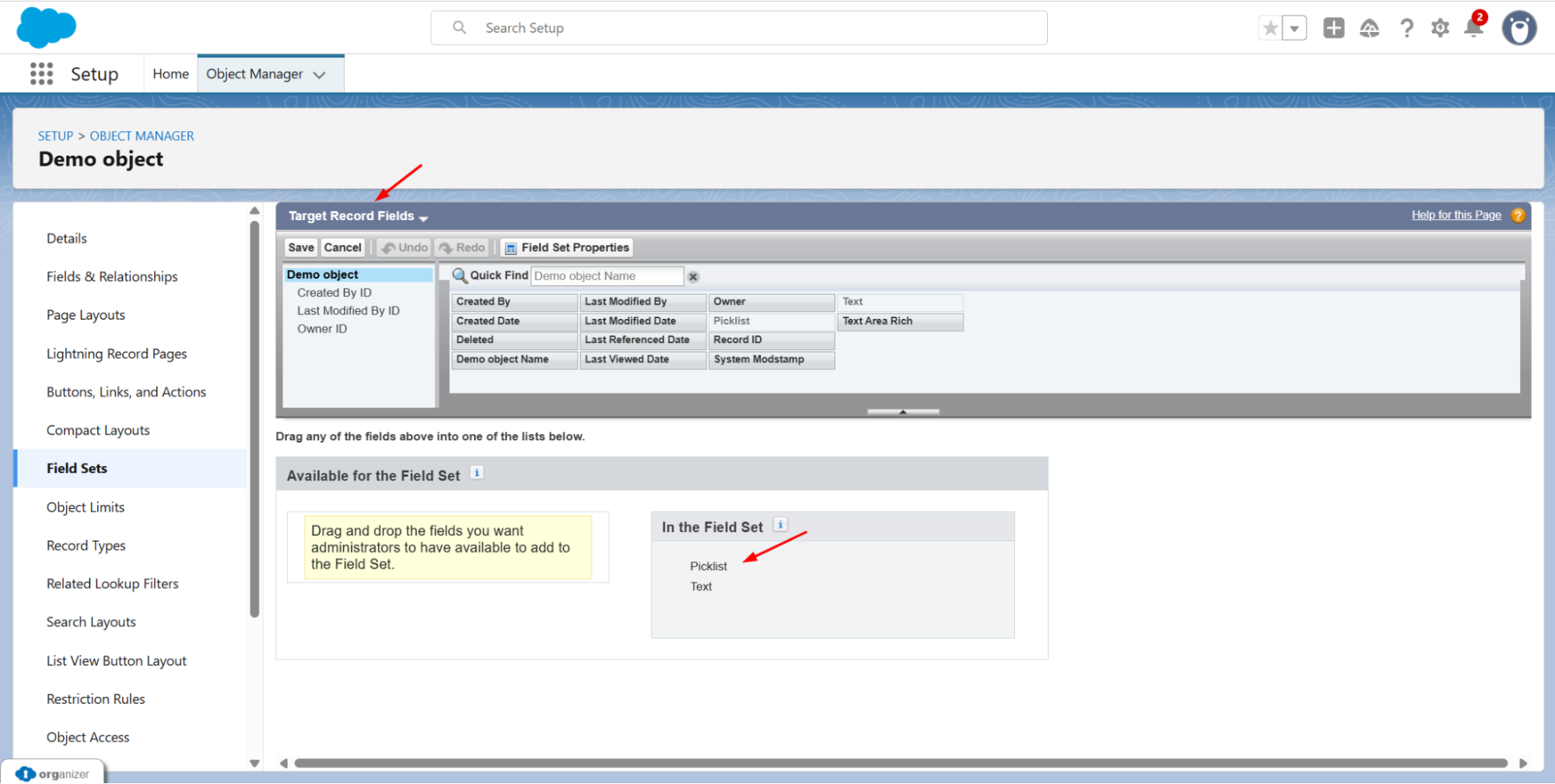
Benefits of the New Super Clone Framework
The updated framework:
- Supports standard and custom Salesforce objects.
- Eliminates the need for Application Object Configuration.
- Automatically recognizes configured field sets.
- Simplifies administration.
- Reduces setup time for new objects.
- Provides a consistent cloning experience across supported Salesforce objects.
Summary
The object-agnostic cloning framework significantly expands the flexibility of both Bulk Clone and Super Clone.
Administrators can enable cloning for virtually any supported Salesforce object using lightweight configuration, eliminating previous dependencies on the Application Object Configuration. The result is a more scalable, reusable cloning framework that simplifies administration while providing a consistent cloning experience across ERX Core.