Rule-by-Rule Testing Guide
Overview
Public-facing forms can be targeted by automated software that creates records, submits unwanted content, or performs actions at a scale far beyond normal human use. FormGuard uses multiple network, browser, interaction, submission, and device signals to help identify activity that may be automated or suspicious.
This guide covers what each FormGuard detection rule catches, how it protects the form, and the exact steps to trigger it yourself — so you can verify coverage before applying rules to live traffic.
Before You Begin
Test one rule at a time where possible. Some test configurations, such as a custom User-Agent, can satisfy more than one rule and make it difficult to determine which rule triggered.
Each rule fires independently and adds its own score. In the following testing configuration:
- Two medium/high rules assigned 50 points each reach the Challenge band.
- The five bot and suspicious activity rules assigned 85 points each can reach the Block band on their own.
Required Allow Object Access (AOA) Permissions
Before testing, grant the following permissions to the Site Guest User.
| Object | API Name | View All | Create | Modify All | Delete | Fields |
|---|---|---|---|---|---|---|
| ERx FB Guard Action | ERx_Forms__ERxFBGaurdAction__c |
Yes | No | No | No | Yes |
| ERx FB Guard Interaction | ERx_Forms__ERxFBGaurdInteraction__c |
Yes | Yes | Yes | No | Yes |
| ERx FB Guard IP Exception | ERx_Forms__ERxFBGaurdIpException__c |
Yes | Yes | Yes | No | Yes |
| ERx FB Guard Log | ERx_Forms__ERxFBGaurdLog__c |
Yes | Yes | Yes | No | Yes |
| ERx FB Guard Rule | ERx_Forms__ERxFBGaurdRule__c |
Yes | No | No | No | Yes |
| ERx FB Guard Suspicious IP/Countries |
ERx_Forms__ERxFBGaurdSuspectedCountriesAndIP__c
|
Yes | No | No | No | Yes |
Location and Network Risk
These rules are evaluated server-side using the request's network path and, where applicable, the browser's reported location.
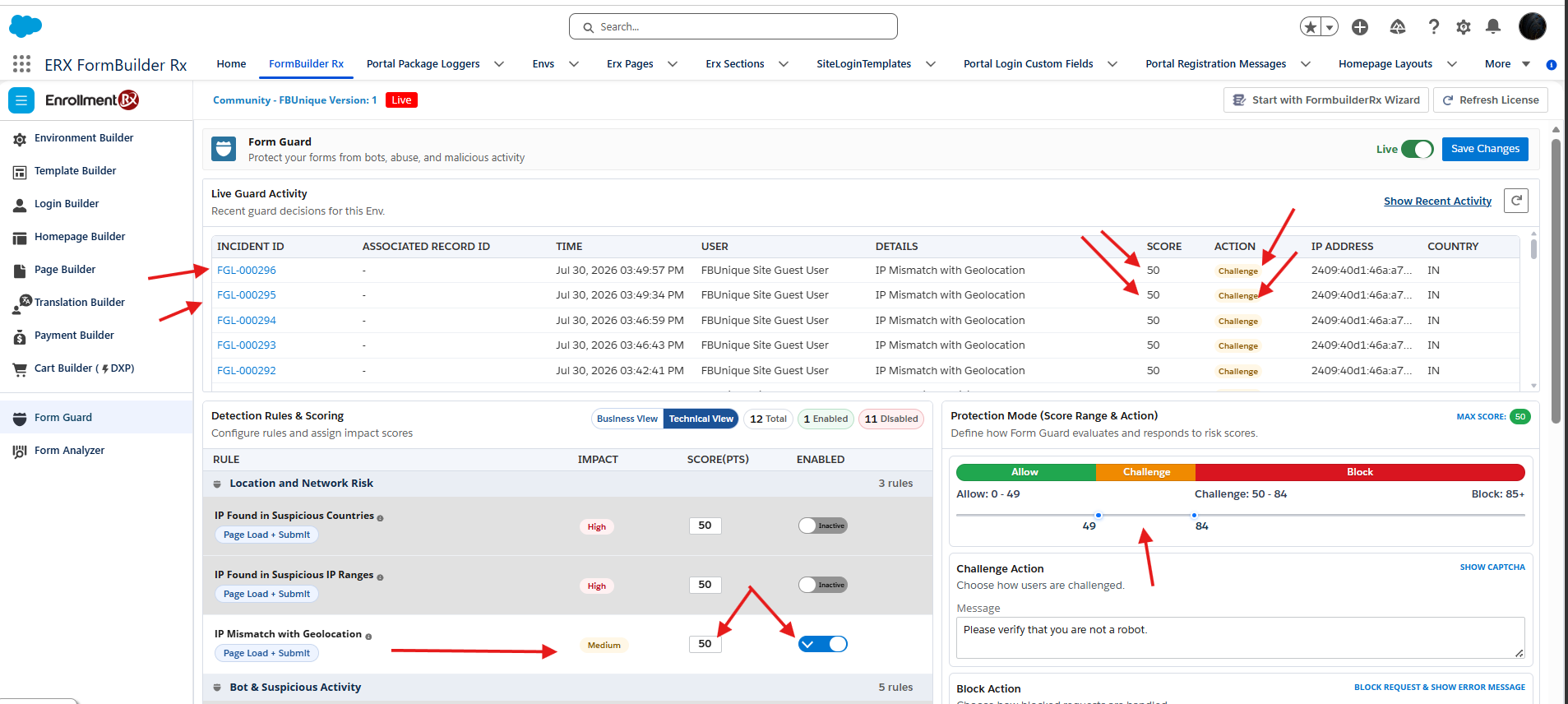
IP Mismatch with Geolocation
- Score
- 50 points
- Severity
- Medium
- Evaluated
- Load and submit
What it detects: The country resolved from the visitor's IP address disagrees with the country resolved from the browser's GPS or Wi-Fi geolocation.
How it protects: The rule can identify virtual private network (VPN), proxy, or geolocation-spoofing scenarios in which the network-derived and browser-reported locations differ. For example, a visitor might connect through a VPN endpoint in one country while the browser reports the device's location in another country.
How to test:
- Open the browser developer console and select More tools > Sensors.
- Under Location, select a preset in a different country from the test connection, or enter custom coordinates.
- Reload the form page and accept the browser location permission request. Complete reCAPTCHA if prompted.
- Complete and submit the form. Complete reCAPTCHA again if prompted.
- Review Live Guard Activity and the FormGuard log.
IP Found in Suspicious Countries
- Score
- 50 points
- Severity
- High
- Evaluated
- Load and submit
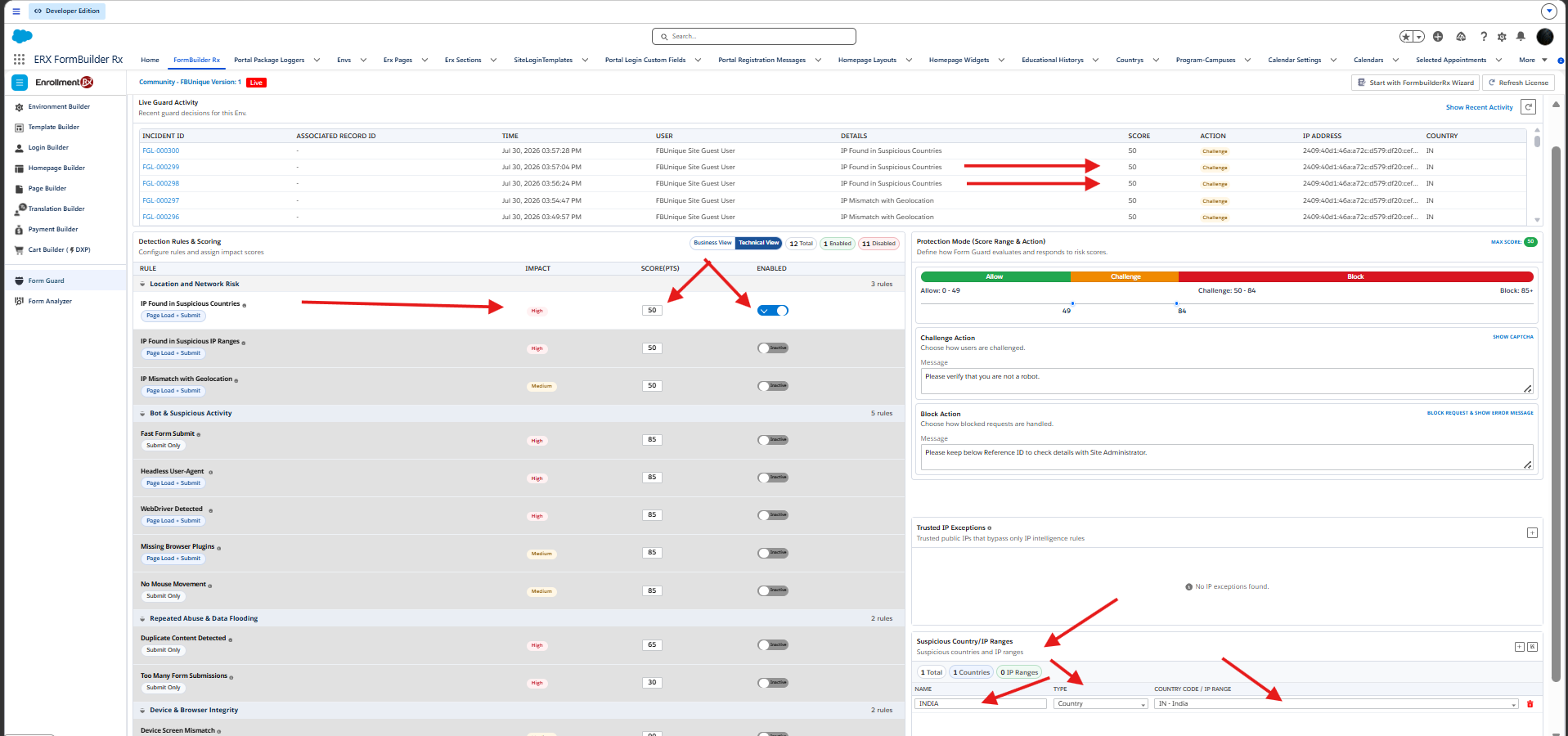
What it detects: The visitor's IP address resolves to a country that an administrator has explicitly identified as high risk for the implementation.
How it protects: Administrators can apply additional scrutiny to submissions originating from countries associated with suspicious activity. For example, if actual incident history shows a disproportionate number of fraudulent form submissions originating from a particular country, matching traffic can be automatically challenged or blocked.
How to test:
-
In the FormGuard administration area, open
Suspicious Country/IP Ranges and add a Country entry for your
country. Check your public IP's country if unsure.
Tip:Using your own country as the test entry is safer than adding a real suspicious country that you might forget to remove.
- Save the configuration, then load and submit the form using the normal test connection. No VPN is needed since you're testing against your own country.
- Remove the test entry after validation.
IP Found in Suspicious IP Ranges
- Score
- 50 points
- Severity
- High
- Evaluated
- Load and submit
What it detects: The visitor's IP address falls within an administrator-defined IP or Classless Inter-Domain Routing (CIDR) range identified as high risk.
How it protects: The rule allows administrators to identify traffic from specific infrastructure, such as bot farms, hosting providers, and previously abused ranges. For example, if repeated automated submissions are traced to a known hosting or data-center range, that range can be identified as suspicious without affecting unrelated traffic from the same country.
How to test:
- Determine the current public IP address used by the test connection.
- On the administration tab, add an IP Range entry with the start and end values set to the applicable test address so the range contains only that address.
- Save the configuration and submit the form normally.
- Remove the test entry after validation.
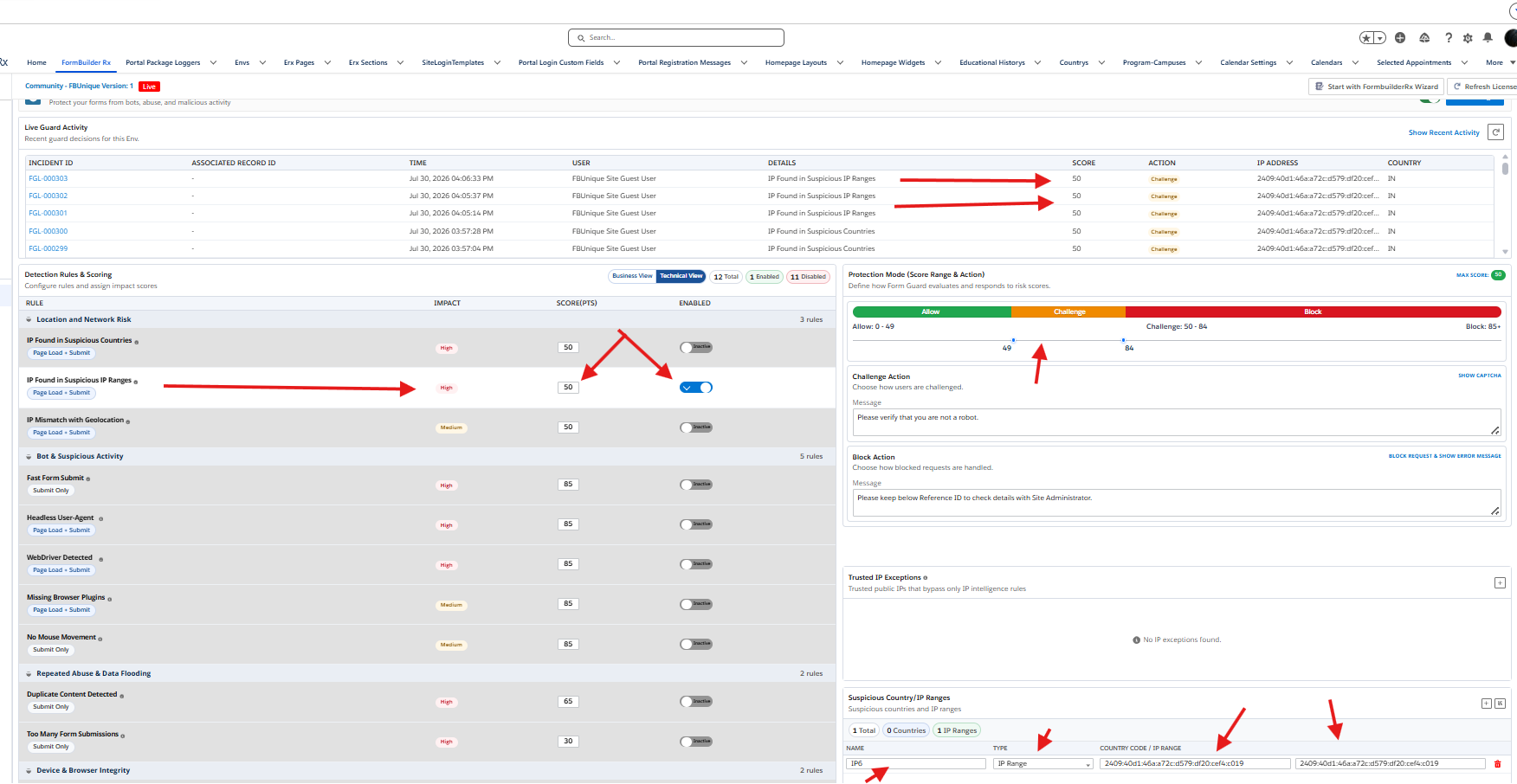
Trusted IP Exceptions
Behavior: Bypass; not scored.
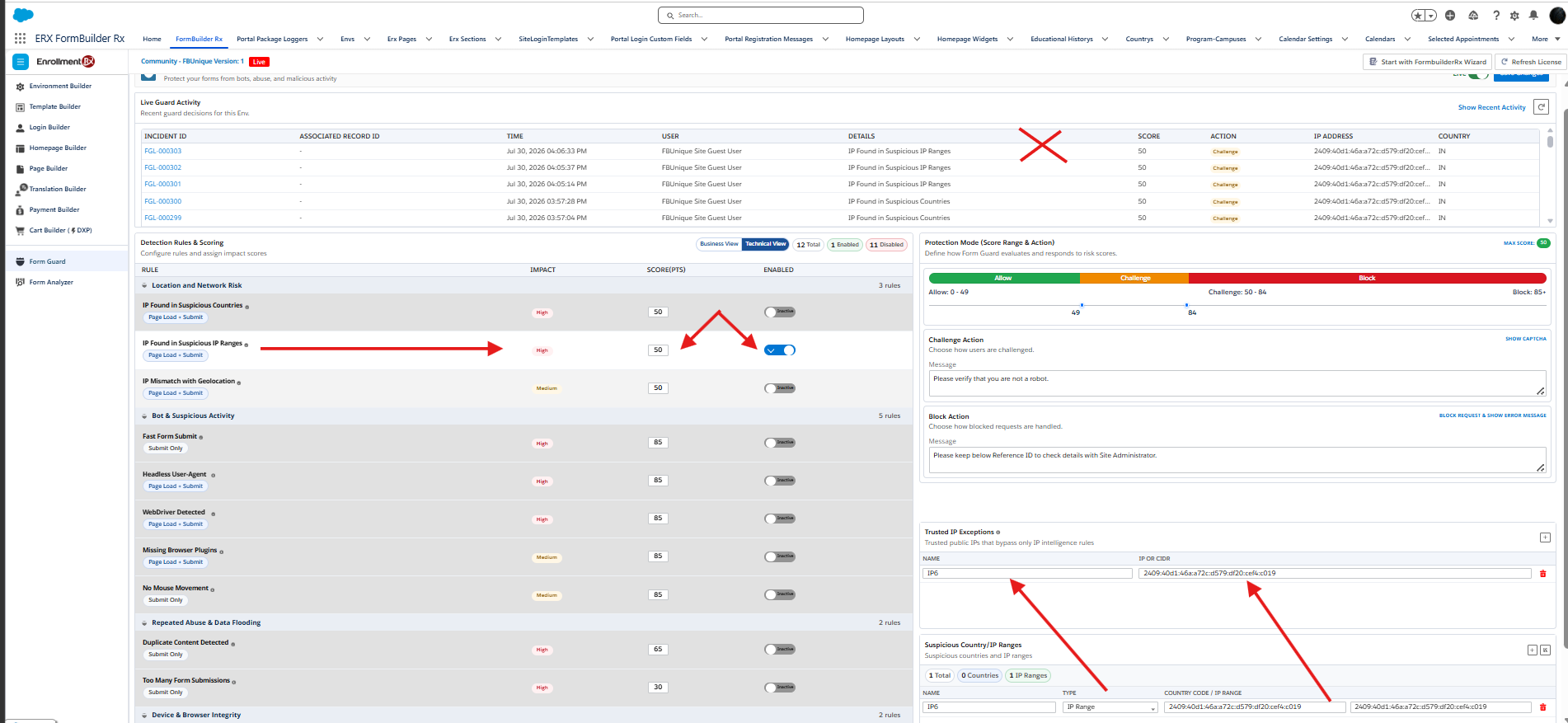
What it does: Allows an administrator to register an approved IP address or CIDR block, such as an office network or partner server, that bypasses the three network-risk rules above and only those three.
How it protects: Trusted IP Exceptions prevent known shared or corporate networks from being penalized by the network-risk checks while leaving behavioral protections active. For example, many legitimate users might submit forms through the same public IP address from an office or partner network; adding the address as a trusted exception prevents the shared network itself from being flagged.
How to test:
- First confirm that the test IP address can trigger a network-risk rule. For example, add your IP address to IP Found in Suspicious IP Ranges and confirm it fires.
- Add the same IP address under Trusted IP Exceptions, save, and submit again.
- Separately run a behavioral test such as WebDriver Detected while the IP exception remains active.
- Remove both temporary entries after testing.
Bot and Suspicious Activity
These rules use client-side signals about the browser environment and how the form is interacted with. Each rule in this category is assigned 85 points.
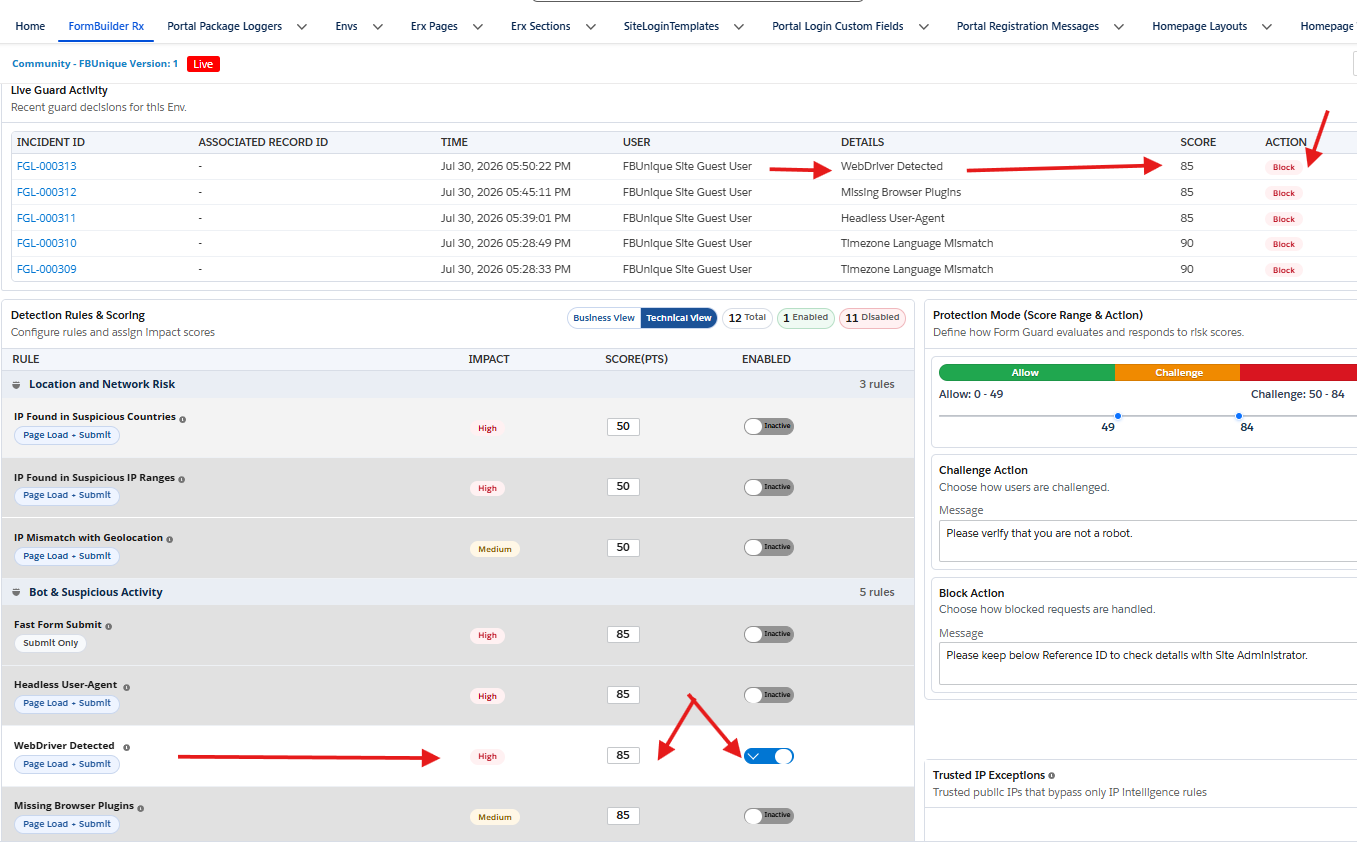
WebDriver Detected
- Score
- 85 points
- Severity
- High
- Evaluated
- Load and submit
What it detects:
navigator.webdriver === true, which browsers can
expose when controlled by automation tooling.
How it protects: The rule identifies scripted browser submissions created by browser-automation frameworks. For example, an automated process could use Selenium or Playwright to open a public FormBuilder Rx page, populate fields, and submit records repeatedly without a person completing each form.
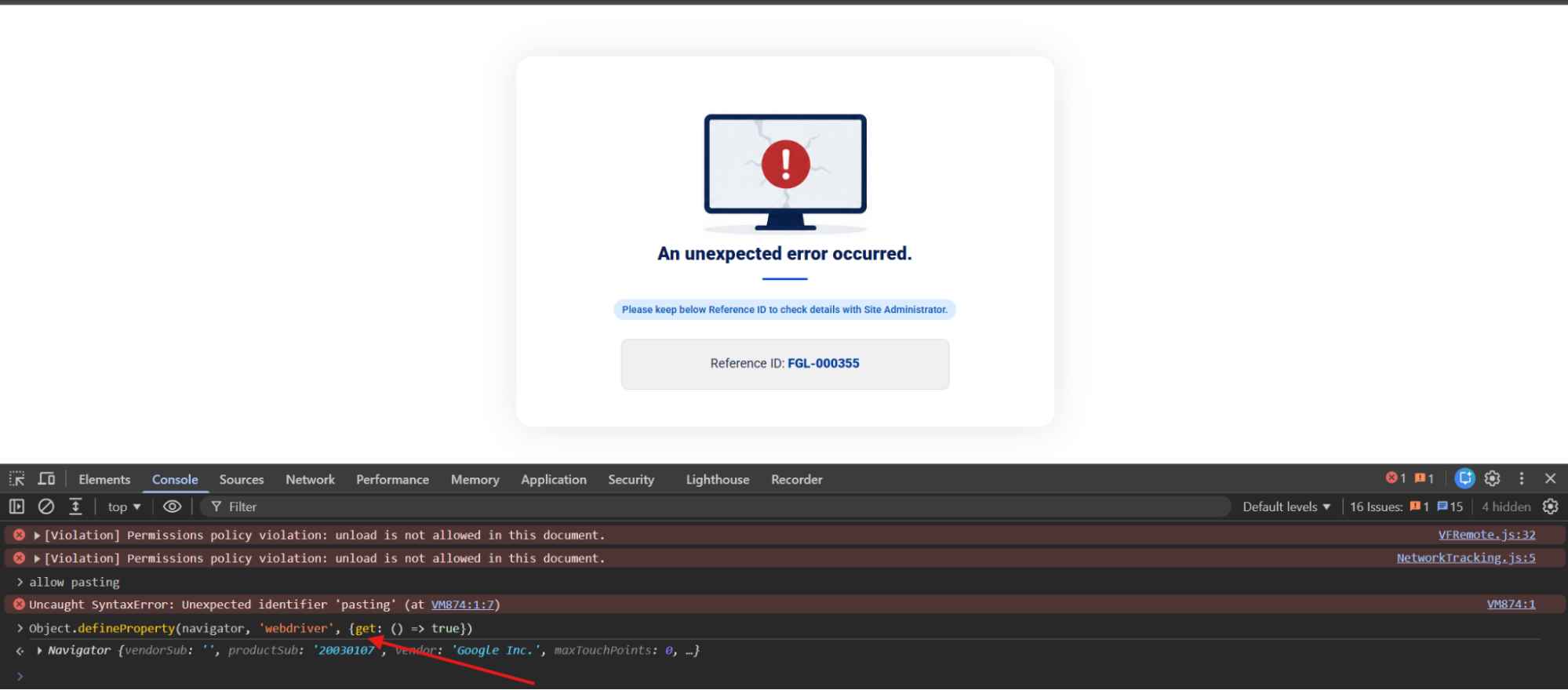
How to test:
- Use Selenium, Playwright, or Puppeteer with its normal automation configuration to open and submit the form.
-
As an alternative, open the developer console before submitting
and run:
Submit without reloading the page.Object.defineProperty(navigator, 'webdriver', {get: () => true})
Headless User-Agent
- Score
- 85 points
- Severity
- High
- Evaluated
- Load and submit
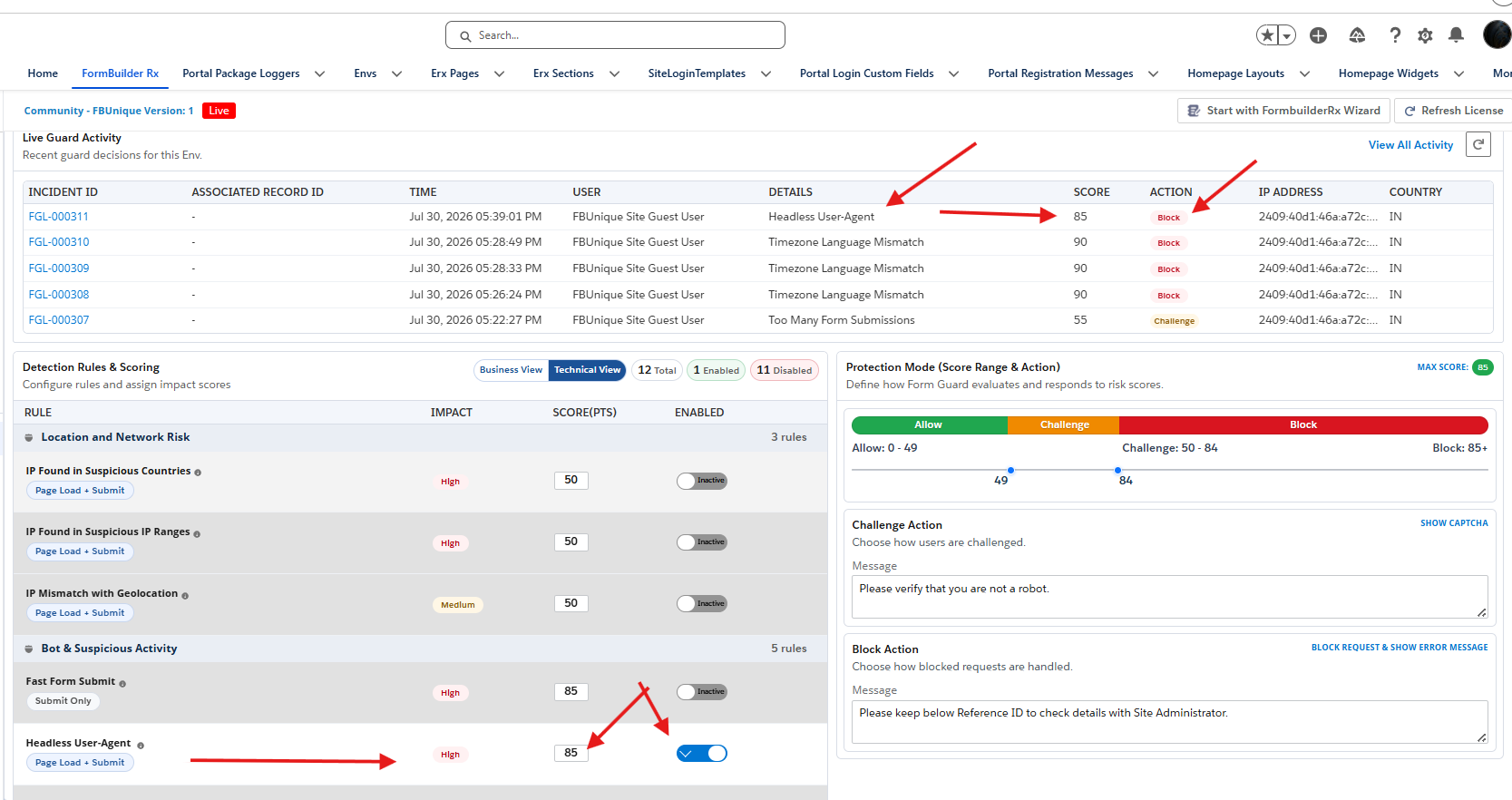
What it detects: A User-Agent string containing
HeadlessChrome.
How it protects: The rule identifies unattended or scripted browser sessions that report a headless User-Agent. For example, an automated process might run Chrome without a visible user interface and use it to load and submit forms continuously without manual browser interaction.
How to test:
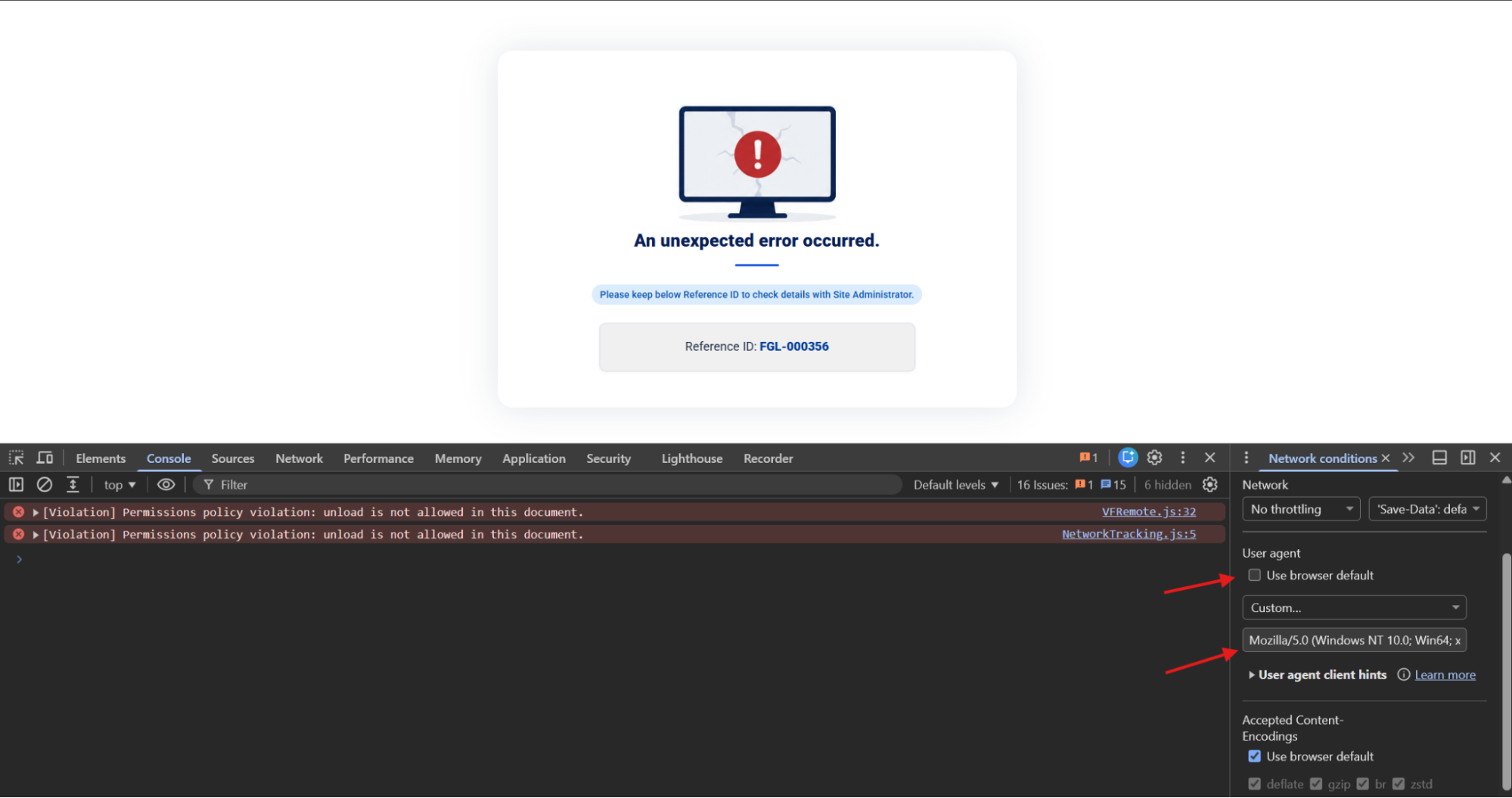
- In the browser developer console, open Network conditions.
- Uncheck Use browser default under User agent.
-
Enter a custom User-Agent string containing
HeadlessChrome. For example, Mozilla/5.0 (Windows NT 10.0; Win64; x64) AppleWebKit/537.36 HeadlessChrome/120.0.0.0 Safari/537.36. - Reload the form and submit it.
Missing Browser Plugins
- Score
- 85 points
- Severity
- Medium
- Evaluated
- Load and submit
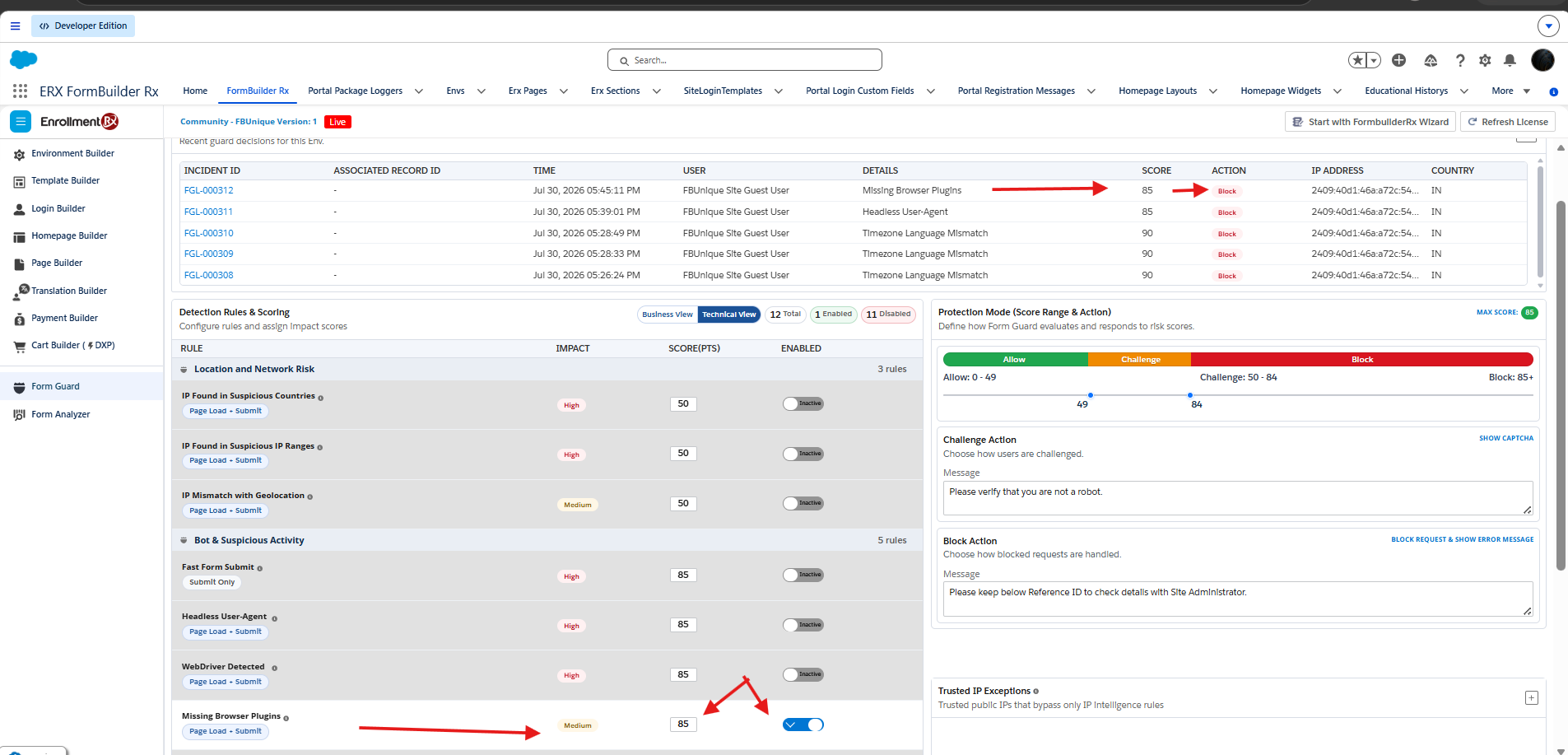
What it detects:
navigator.plugins.length === 0. An empty browser plugin list
can provide a browser-environment signal associated with some headless or
minimal browser environments.
How it protects: The rule provides an additional browser-environment signal when other automation indicators may not be present. For example, an automated browser might suppress its WebDriver indicator or User-Agent pattern while still exposing limited browser plugin information.
navigator.plugins list is not, by itself, proof of
automation, so validate this rule in the browsers applicable to your
implementation.
How to test:
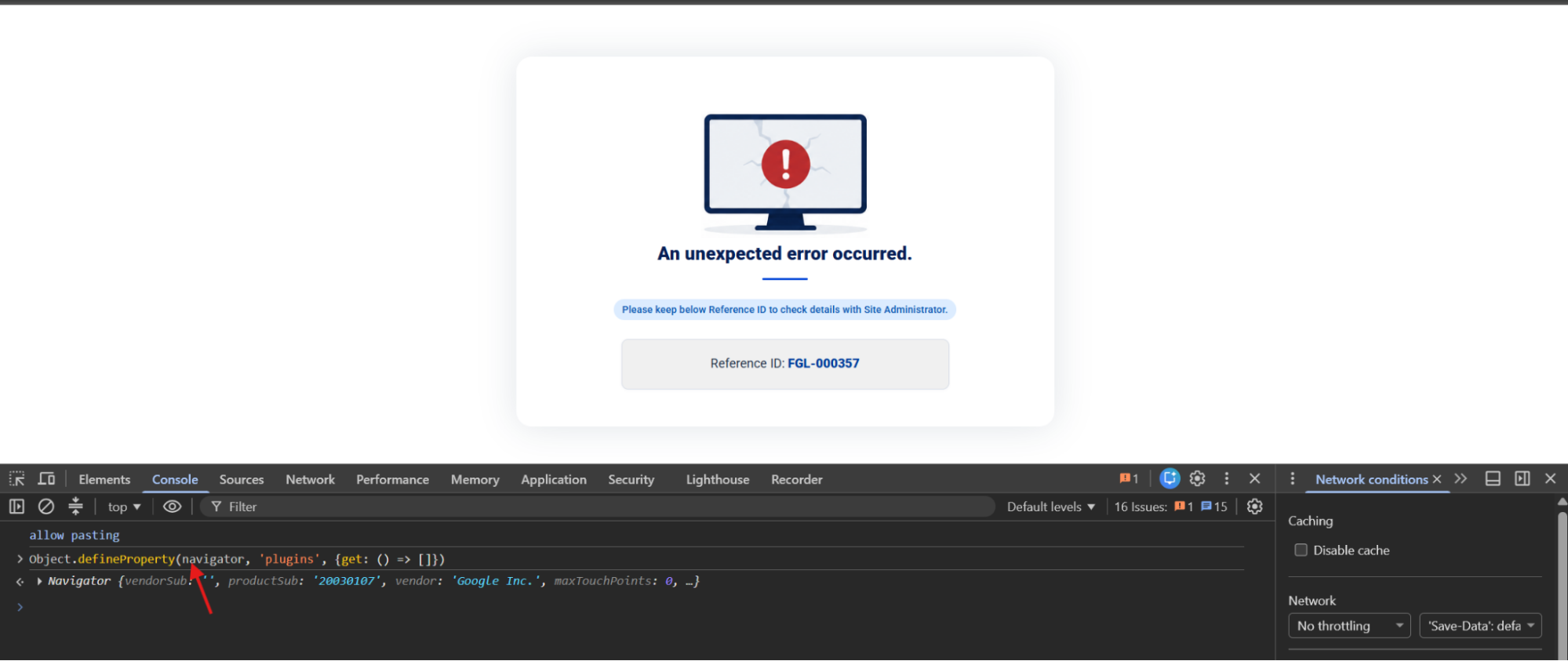
- Open the developer console on the form page.
-
Run:
Object.defineProperty(navigator, 'plugins', {get: () => []}) - Submit without reloading so that the override remains active.
No Mouse Movement
- Score
- 85 points
- Severity
- Medium
- Evaluated
- Submit only
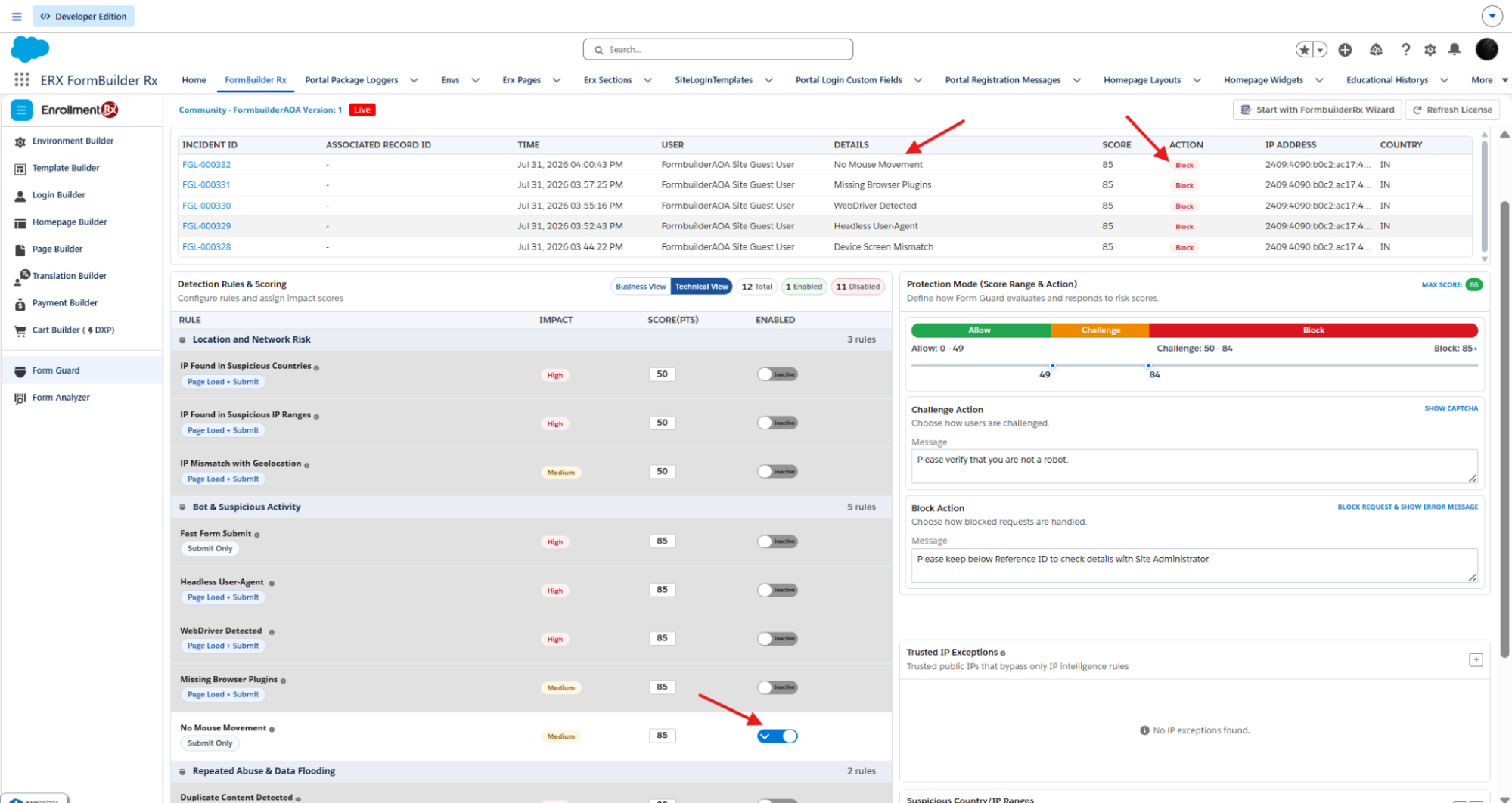
What it detects: No mouse or touch events were recorded from page load through submission.
How it protects: Programmatic form completion can occur without the interaction events normally generated by a user. For example, a script can set field values and submit the form directly without ever moving a pointer, clicking a field, or generating a touch event.
How to test:
- Load the form without moving the mouse or touching the trackpad.
- Use Tab to move between fields.
- Enter the required values using the keyboard only.
- Tab to the Submit button and press Enter or Space without clicking.
Fast Form Submit
- Score
- 85 points
- Severity
- High
- Evaluated
- Submit only
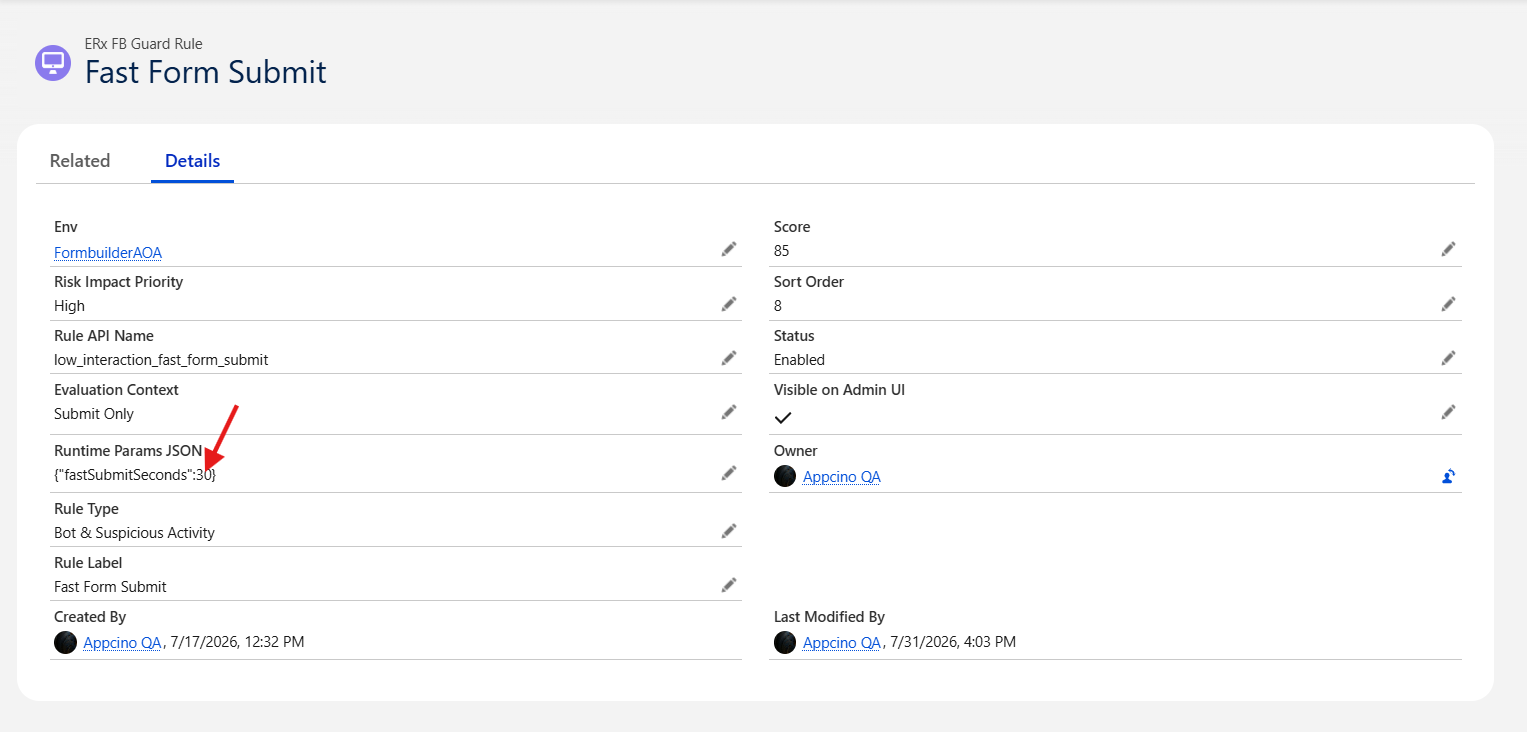
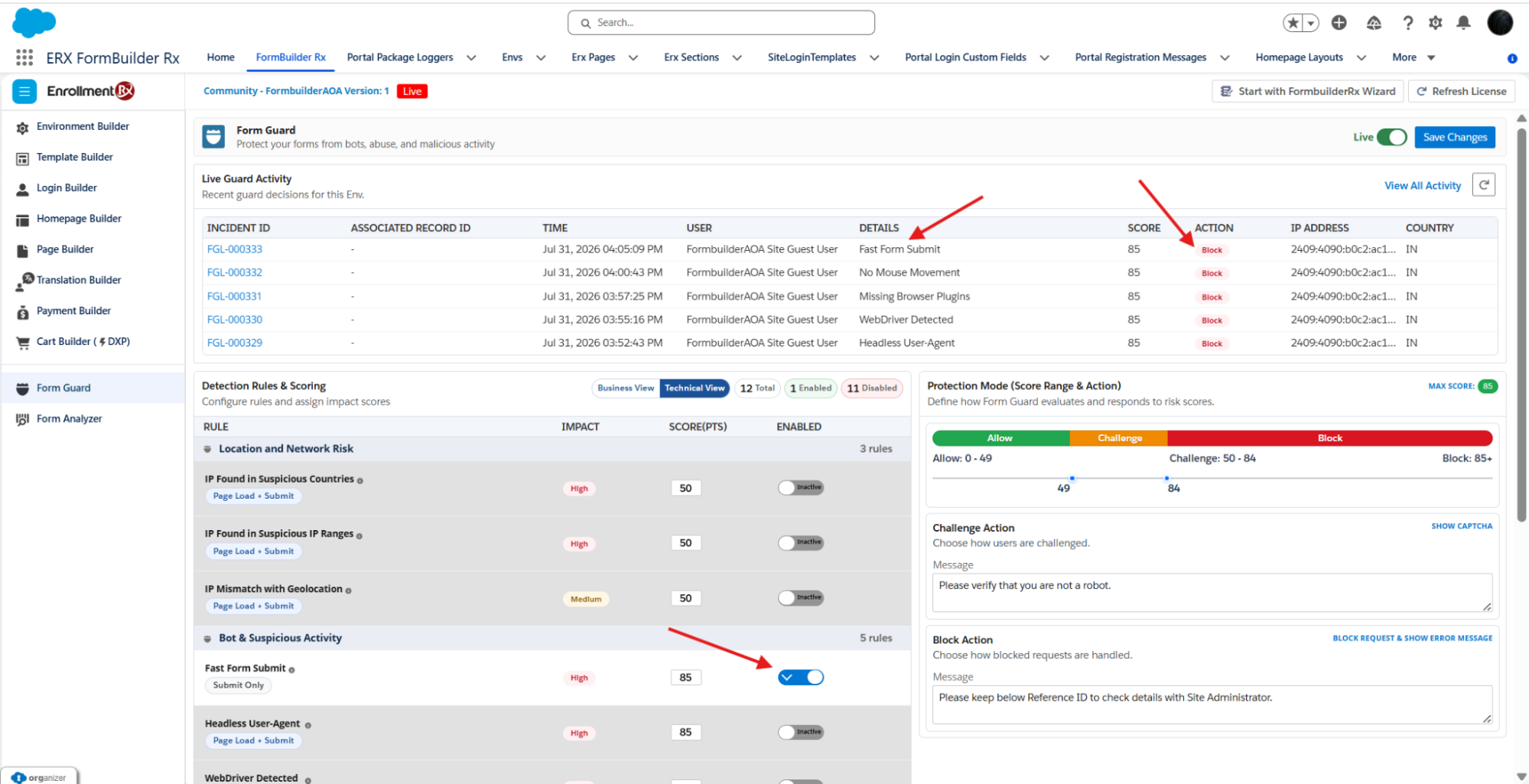
What it detects: The time from the visitor's first interaction through
submission is less than a setting called fastSubmitSeconds
(default 2 seconds). This is faster than a human can plausibly fill a form.
How it protects: The rule identifies scripted or autofill-driven submissions in which fields are populated and submitted unusually quickly. For example, a script can populate every required field nearly instantaneously and submit the form before a person could reasonably read and complete the same fields.
How to test:
- Use saved browser autofill data or a password manager to populate the form fields quickly.
- Load the page, populate the fields in one action, and submit within 2 seconds of the first interaction.
- For manual testing, temporarily increase the time by 30 seconds.
Repeated Abuse and Data Flooding
These rules are tracked client-side in local storage and are scoped to the browser and FormBuilder Rx page.
Duplicate Content Detected
- Score
- 50 points
- Severity
- High
- Evaluated
- Submit only
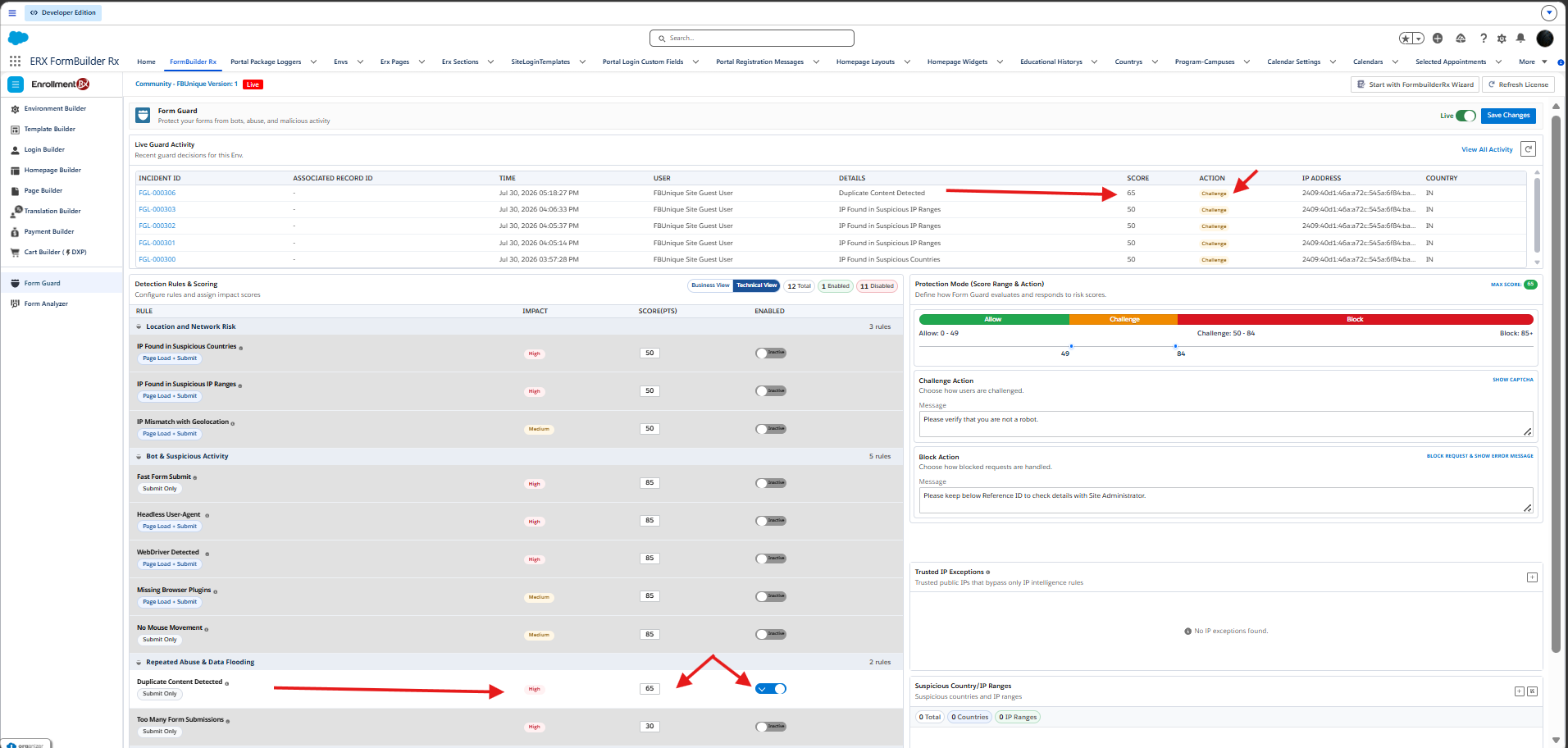
What it detects: The same canonicalized and hashed form values have already been submitted for the page at least once during the previous 24 hours.
How it protects: The rule identifies repeated scripted or copy-and-paste submissions containing the same values. For example, an automated process might repeatedly retry the same applicant data after each successful submission, producing multiple records with identical content.
How to test:
- Complete the form using a specific set of values and submit it once.
- Without clearing local storage, reload the form and submit the exact same values again.
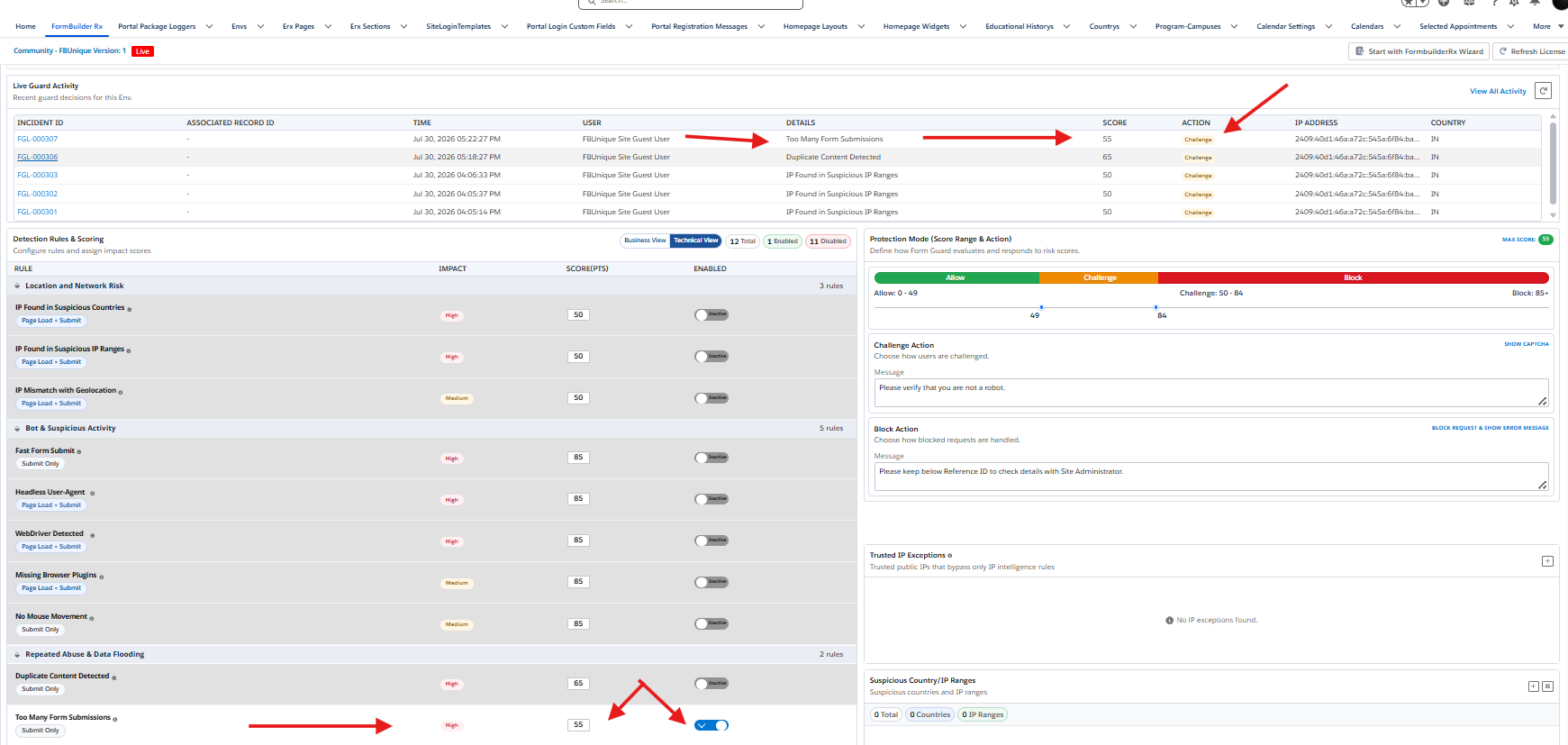
Too Many Form Submissions
- Score
- 50 points
- Severity
- High
- Evaluated
- Submit only
What it detects: More than three submissions from the same browser to the same form during a rolling five-minute, or 300-second, period.
How it protects: The rule limits bursts of submissions from one browser even when each submission contains different values. For example, an automated process might rapidly submit a series of records with different names or email addresses so that duplicate content detection alone would not identify the activity.
How to test:
- Submit the form once. This rule doesn't check content, and submitted values can vary between tests.
- Submit the form three more times from the same browser within five minutes.
Device and Browser Integrity
These rules compare information reported by the browser with other device characteristics.
Device Screen Mismatch
- Score
- 50 points
- Severity
- Medium
- Evaluated
- Load and submit
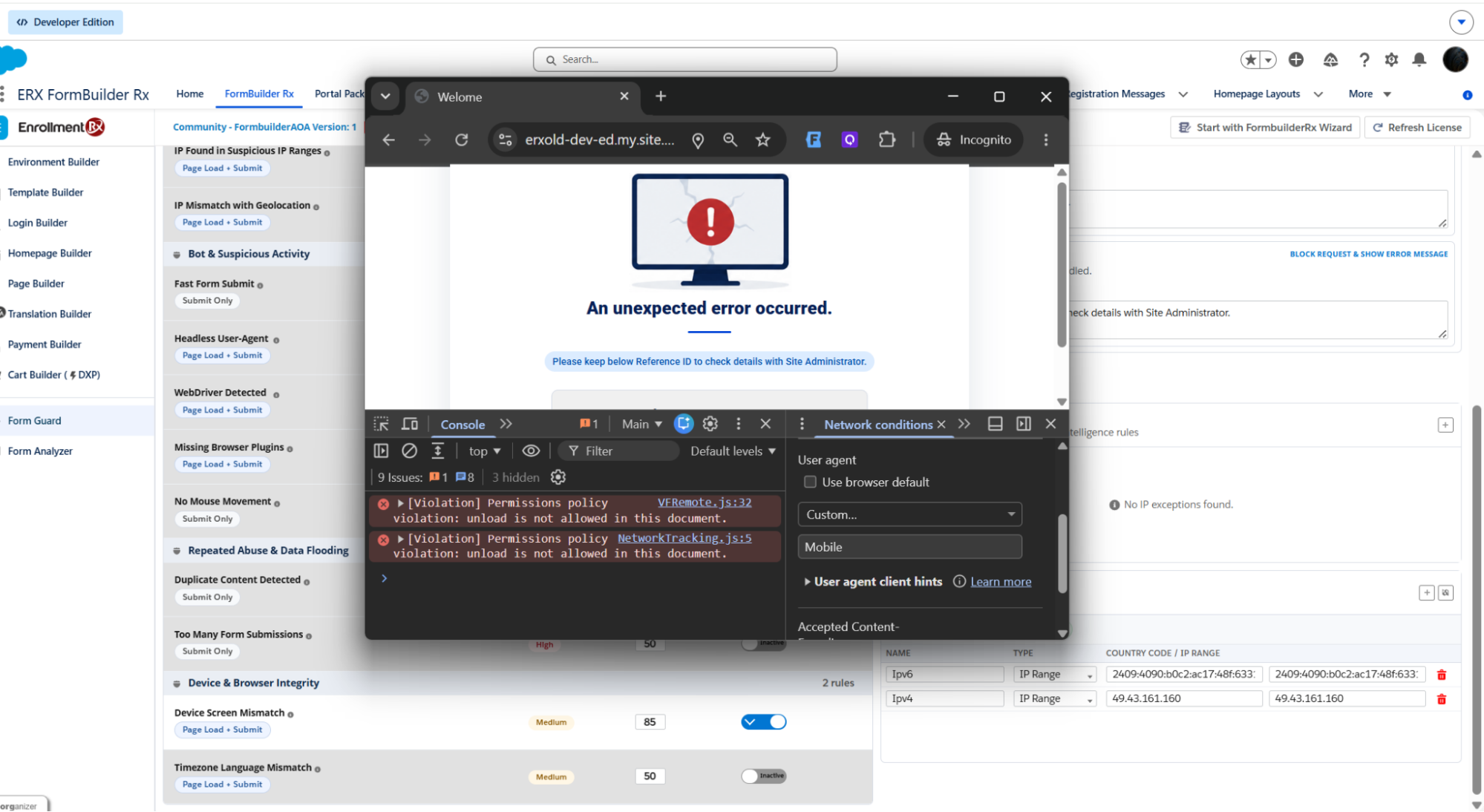
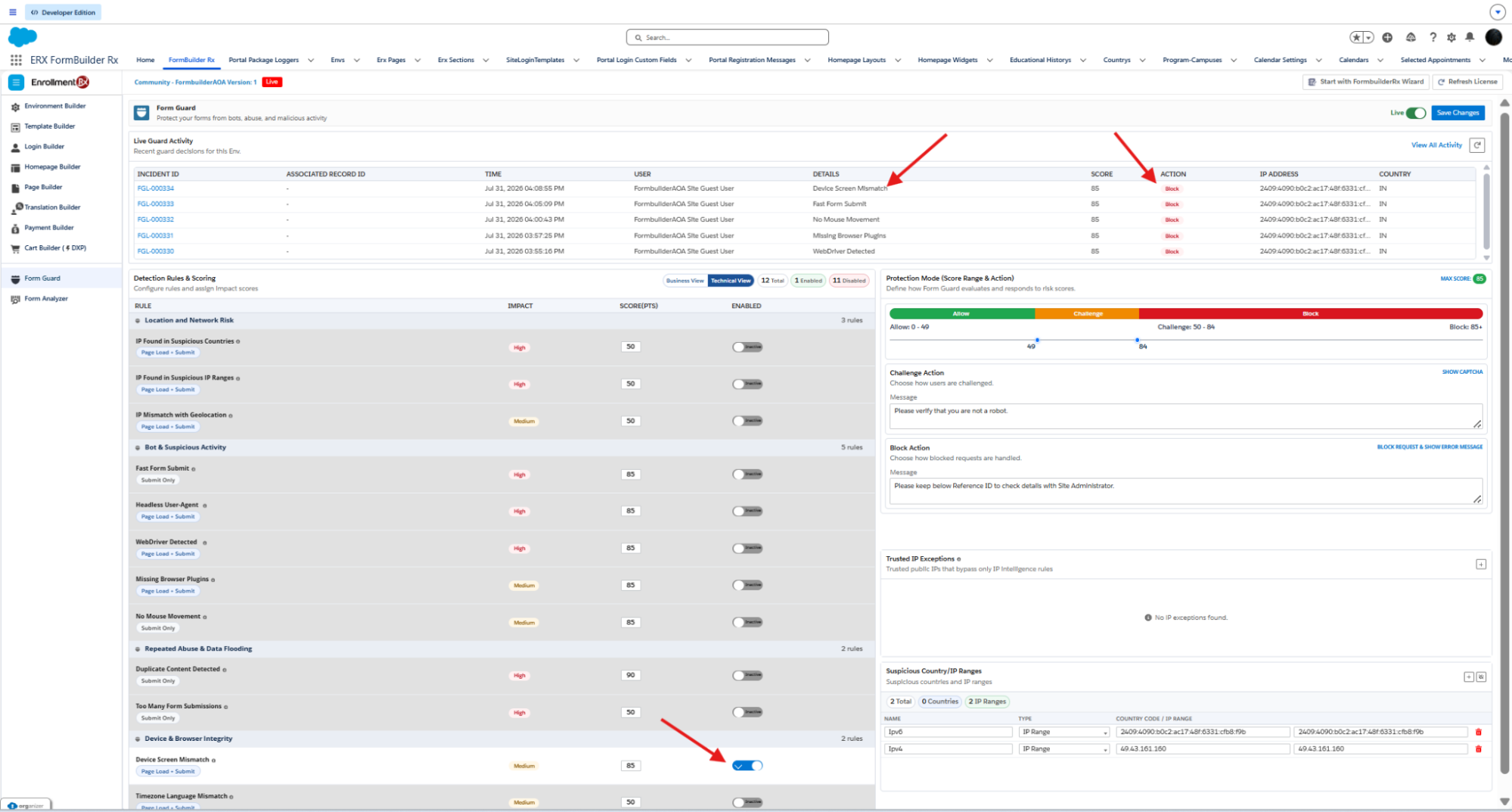
What it detects: A User-Agent reports a mobile device while the screen-to-viewport ratio exceeds 1.5 and touch support is absent. This is inconsistent with an actual phone or tablet.
How it protects: The rule can identify automated or simulated environments that report a mobile User-Agent without matching mobile viewport or touch characteristics. For example, an automated browser running on a desktop system might identify itself as an iPhone while still exposing screen and input characteristics that are inconsistent with a mobile device.
How to test:
- Open the browser developer console and select Network conditions.
- Uncheck Use browser default under User agent.
-
Enter a custom User-Agent containing
Mobile,iPhone, orAndroid. - Reduce the browser window's width and height by dragging its edges inward.
- Reload the page.
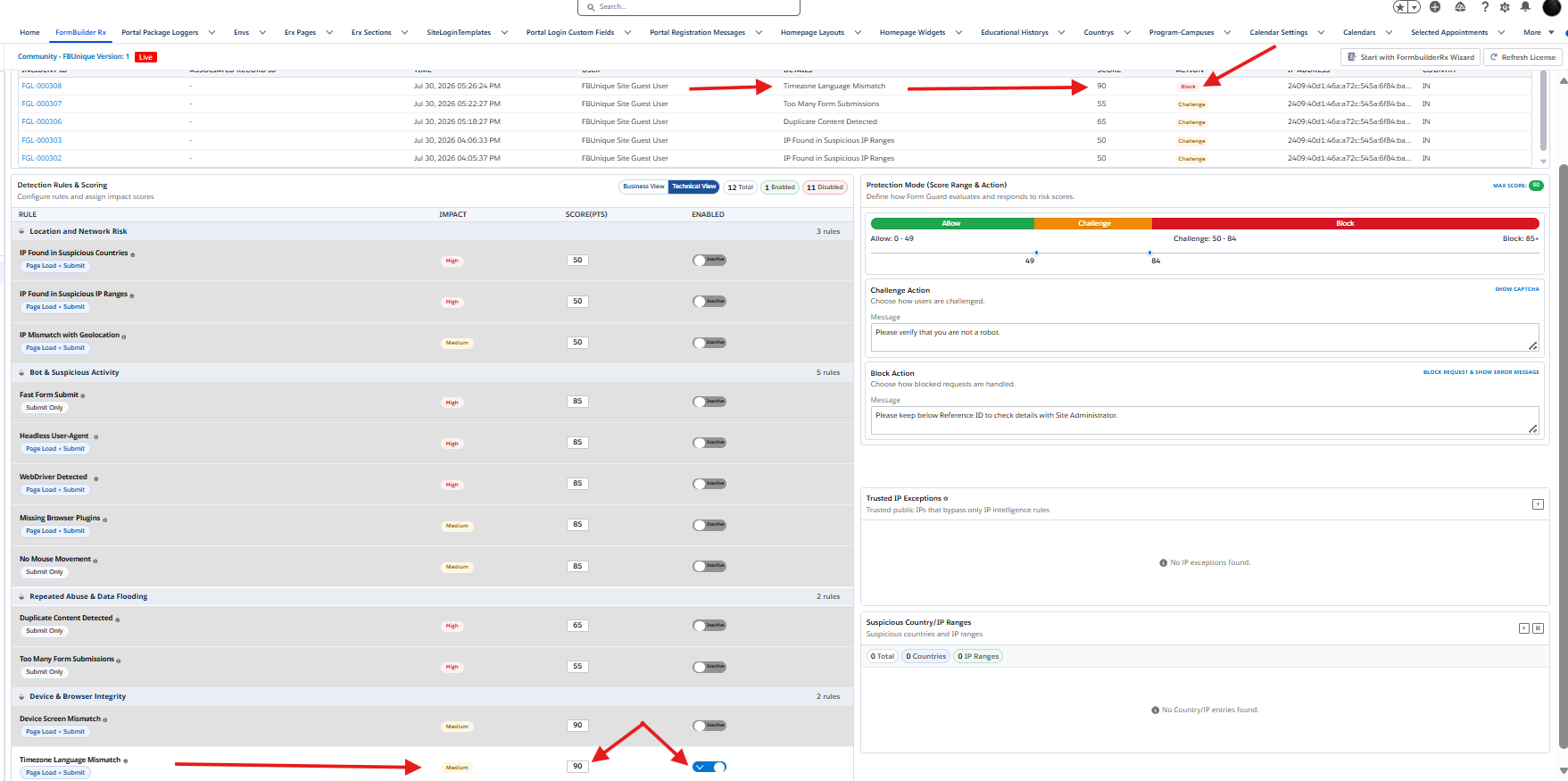
Timezone Language Mismatch
- Score
- 50 points
- Severity
- Medium
- Evaluated
- Load and submit
What it detects: The browser's declared language and system timezone do not correspond to the expected regional combination, based on an administrator-configurable locale-to-timezone map.
How it protects: The rule can identify environments in which locale and timezone settings are inconsistent. For example, an automated virtual machine or proxied browser session might be configured with a language associated with one region while retaining a system timezone associated with a different region.
How to test:
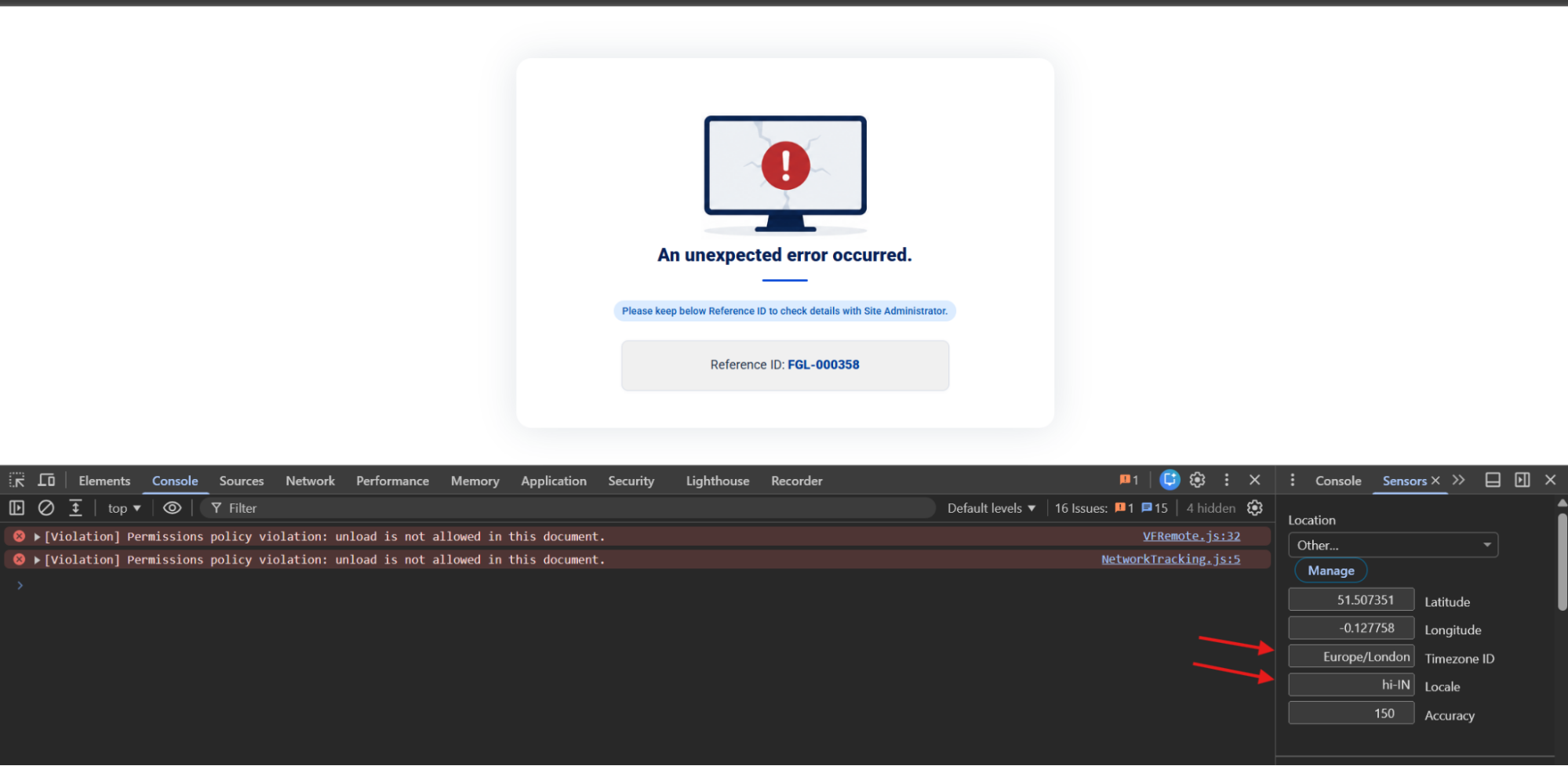
- Open the browser developer console command menu and select Sensors.
-
Set the Timezone ID to
Europe/London. -
Set the Locale to
hi-IN. - Reload the page.
en are treated as a global default and
are exempt, so use a non-English locale for this test.