

How to Cancel a Scheduled Job
Overview
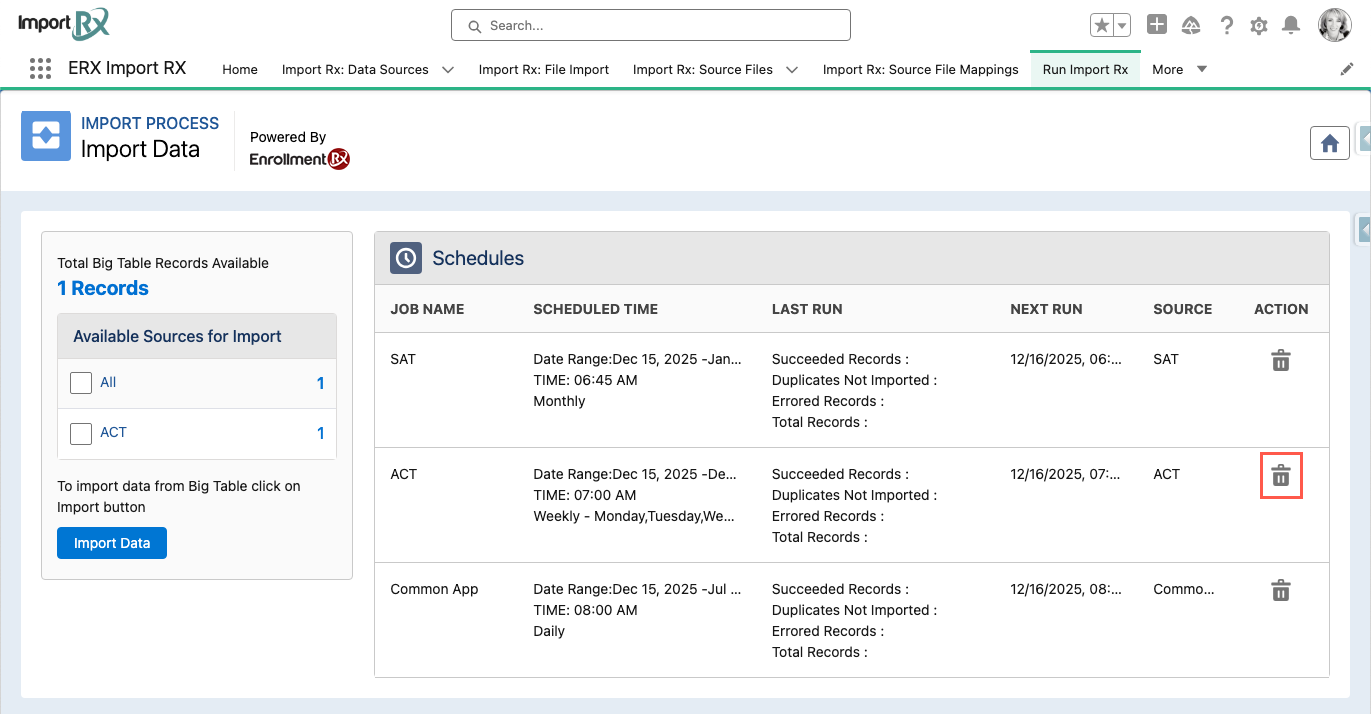
The "Schedules" section on the Import Data tab provides a way to view and cancel your scheduled import jobs. For any schedule that has current or future runs, a Cancel button (trash icon) will appear in the Action column. Clicking this button will immediately stop all current and future runs associated with that schedule. It is important to note that a canceled schedule cannot be restarted, and any in-progress job that is canceled will not have its Run Results recorded.
Steps to Cancel a Scheduled Job
- Navigate to the Schedules section on the Import Data tab (in 2025
Release 2, this tab name has changed to Run Import Rx).

- Find the job you wish to cancel in the table.
- In the Action column for that schedule, click the Cancel button (the trash can icon). This
button is only available for schedules with current or future runs.
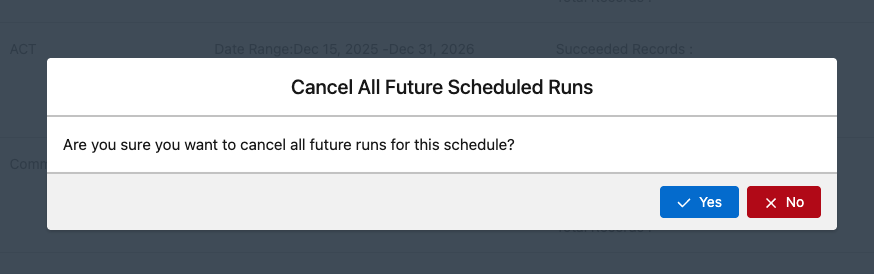
- Confirm your decision in the popup window to stop all current and future runs for
the selected schedule.
CAUTION:
You should never attempt to edit or update records that are part of a
Scheduled Job. This creates the risk of data inconsistencies, automation conflicts, or
data loss. If you need to edit any associated records, we recommend that you first
cancel the job per the instructions above, make modifications as necessary, and start
over with a new Scheduled Job.